Automate your LinkedIn posts with AI
Steve researches your brand, designs LinkedIn post graphics and writes matching captions — nothing saves to Google Drive until you approve it.

Posting on LinkedIn every day means coming up with ideas, designing visuals and writing captions that sound like your brand, then doing it all again tomorrow. Steve, an AI teammate in Mices, researches your brand, designs LinkedIn post graphics and writes captions to match. Nothing gets saved until you approve it.
Why brand research comes before the design
A post that looks good but doesn't sound like your brand gets ignored. Steve researches your brand, your customers and your offer before designing anything, so the graphics and captions come from an understanding of what you actually do, not a generic template. You still review everything before it's saved.
What you need
- Your brand, customers and offer, so Steve knows what to research
- Google Drive and Google Sheets connected, for saved posts and a tracker
- 1
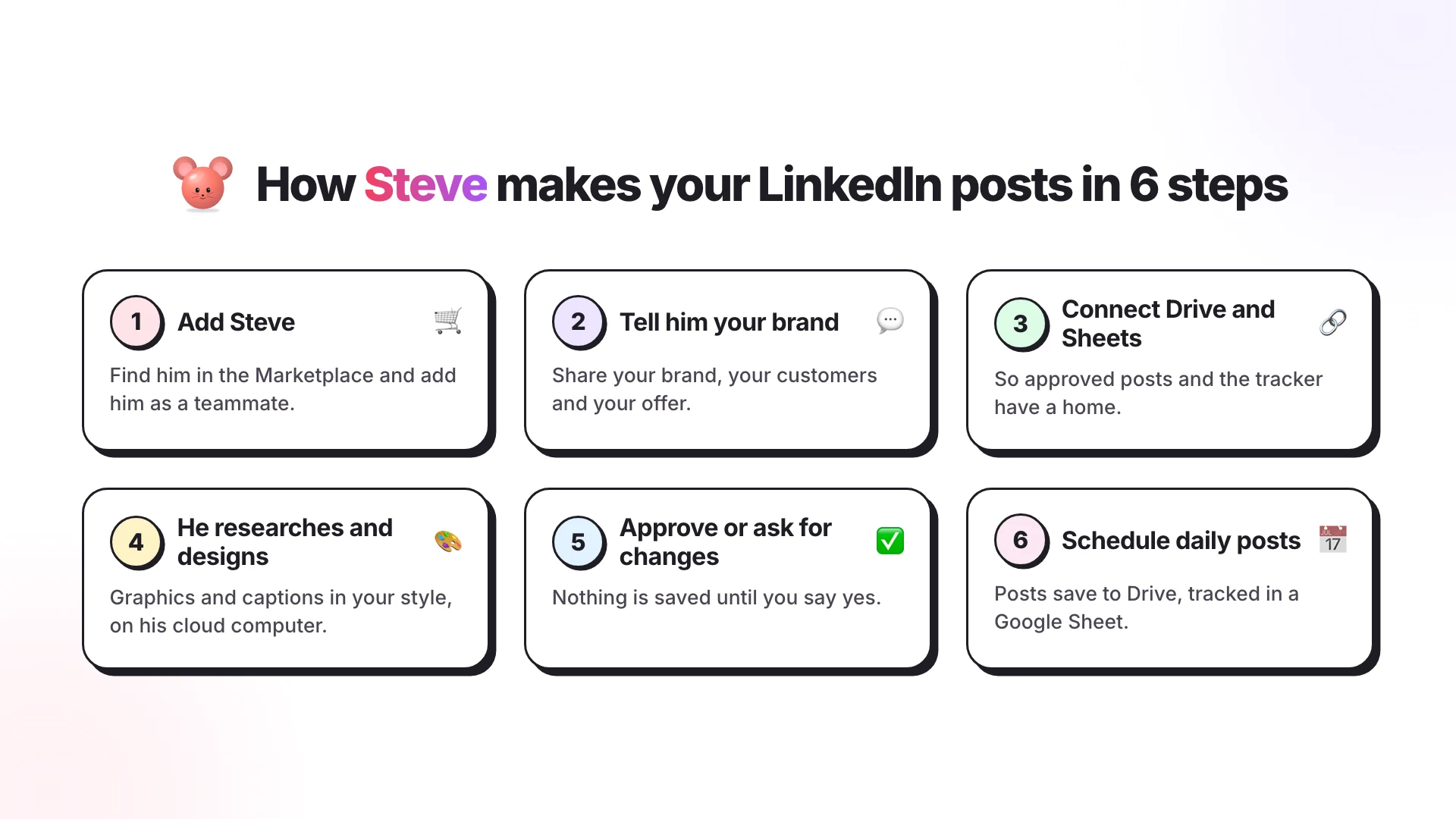
Add Steve to your workspace
Find Steve in the Mices Marketplace and add him as a teammate.
- 2
Tell Steve about your brand
Share your brand, your customers and your offer.
- 3
Connect Google Drive and Google Sheets
One click to connect both, so approved posts and the tracker have somewhere to go.
- 4
Watch Steve research and design
Steve researches your brand on his own cloud computer, then designs post graphics and writes captions in your voice.
- 5
Approve, or ask for changes
Nothing is saved until you approve it. You can also ask for changes, like less text on the image.
- 6
Schedule daily posts
Approved posts save to Google Drive, with a Google Sheet tracking what was picked and when.
Make LinkedIn posts for my brand
Make it run on its own
Schedule Steve for a daily 9 AM run, then hand approved posts to a posting mouse so new content is ready without you writing it yourself.
Tips for better results
- Give Steve a specific offer to highlight, not just a general brand description, so captions have something concrete to say.
- Ask for changes instead of rejecting outright. Steve can redesign with less text or a different layout.
- If you also want video ideas for a different platform, see how Adam finds YouTube video ideas.
Questions people ask
Does Steve post to LinkedIn for me?
Steve designs and writes the posts. Posting them is a separate step you control, for example by handing approved posts to a posting mouse.
Can I reject a post Steve makes?
Yes, nothing saves until you approve it, and you can ask for changes instead.
Where do approved posts get saved?
Google Drive, with a Google Sheet tracking which posts were picked and when.
Do I need a brand guide to start?
No, just tell Steve about your brand, customers and offer. He does the research from there.
How is this different from using a design tool myself?
A design tool still needs you to come up with the idea and caption. Steve researches your brand first, then produces both the design and the caption together, ready for you to approve.