Cloud hours vs computer hours in Mices, explained
What uses cloud hours, what uses computer hours and what's free in Mices, how the minutes are counted, and how many hours you need, with everyday examples.

Mices plans come with two kinds of hours: cloud hours and computer hours. If that sounds confusing, you're not alone, so here's the short version. Cloud hours are time a mouse spends working on our servers without a screen. Computer hours are time spent on your cloud computer, the full desktop with a browser that stays signed in. And chats that run on your own computer don't use either.
Below you'll see what uses each kind, what's free, how the minutes are counted and how many hours you really need, with everyday examples.
Where can a mouse do the work?
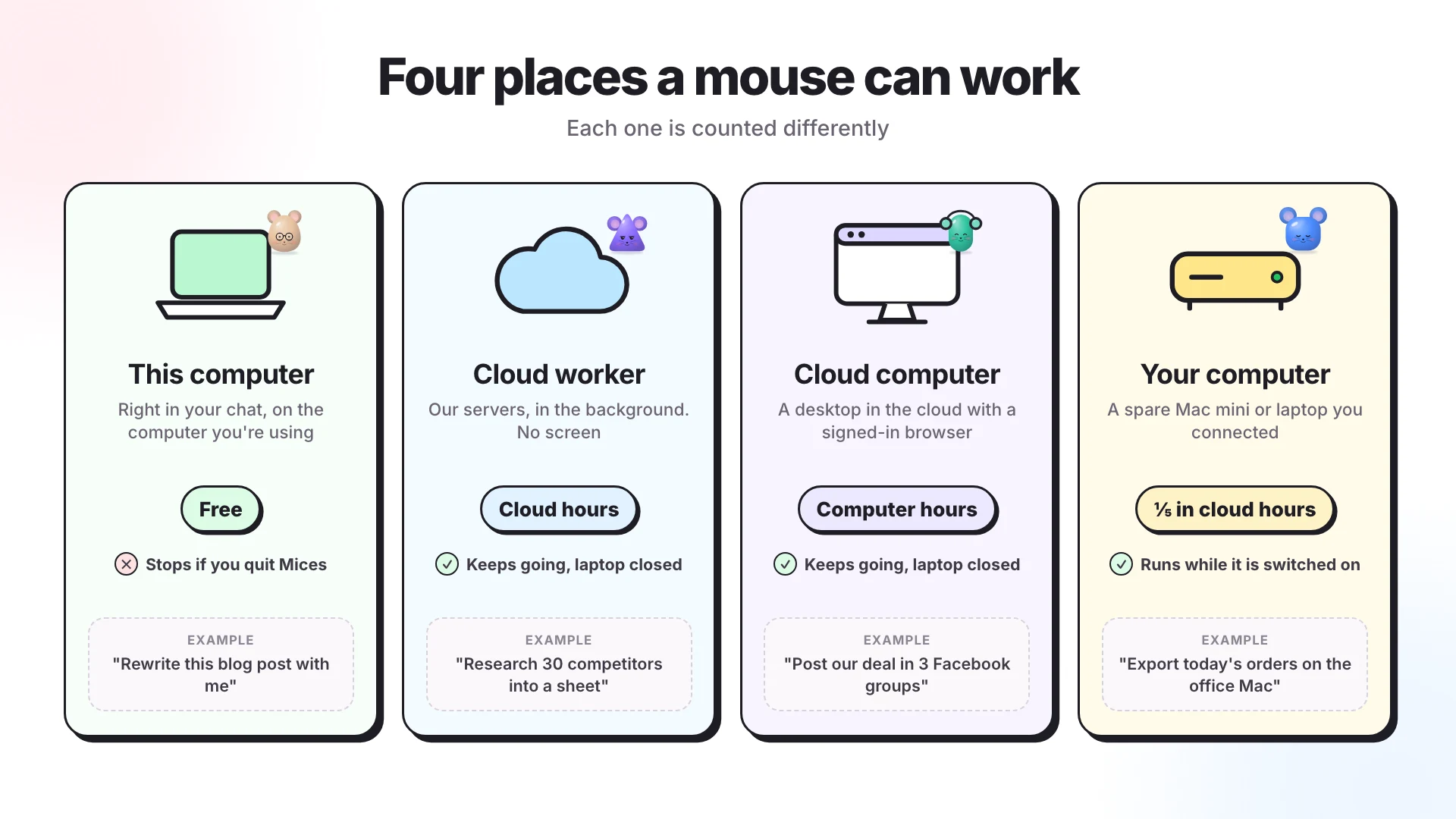
When you give a mouse a task, it asks you how the task should run, or picks what the job needs. There are four choices, and each one is counted differently:
- This computer: the mouse works right in your chat, on the computer you're using, with your files. Free and unlimited on every plan, the free plan included. It stops if you quit Mices.
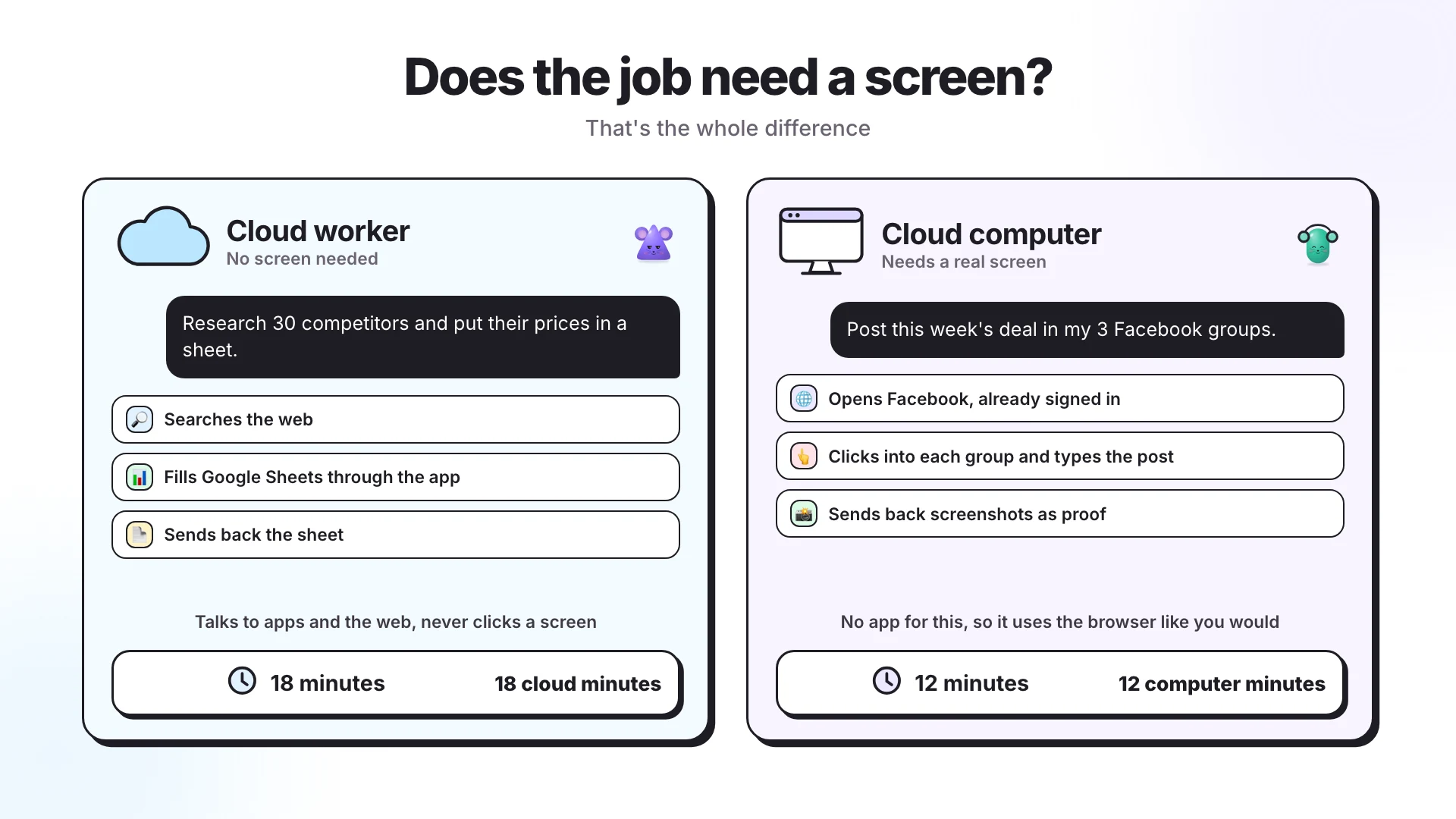
- Cloud worker: the mouse works on our servers in the background, so you can close the app. It has no screen and no signed-in browser, but it can search the web, use your connected apps and make files. Uses cloud hours.
- Cloud computer: your workspace's own desktop in the cloud, with a real browser that stays signed in to your accounts. The mouse clicks and types the way you would. Uses computer hours.
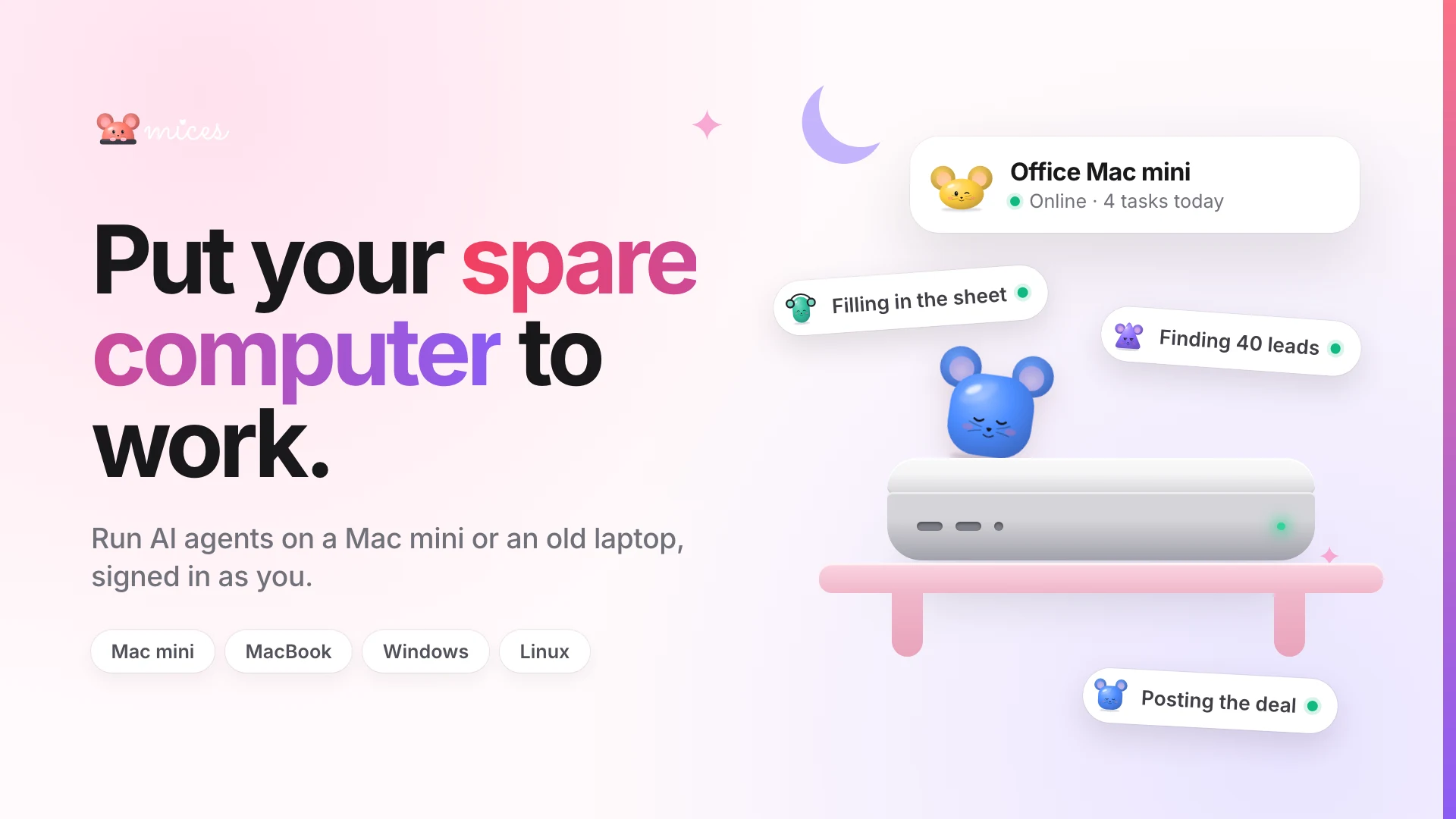
- Your computer: a spare Mac, Windows or Linux computer you connected, like a Mac mini on a shelf (on Business and Agency). The work happens there, so it uses only a fifth of its time in cloud hours.
What uses cloud hours?
Cloud hours are for work that doesn't need a screen. The mouse reads, thinks, searches the web and talks to your apps through their connections. For example:
- "Research 30 competitors and build a comparison sheet."
- "Every morning at 8, read my unread Gmail and send me a five-line summary in Slack." It works through the Gmail and Slack connections, not their websites.
- "Find this week's news about our top 5 competitors."
- "Turn these call notes into a launch brief," while your laptop is closed.
Because it runs on our servers, a cloud worker task keeps going after you close your laptop. That makes it the usual home for scheduled tasks.
What uses computer hours?
Computer hours are for work that needs a screen: a real browser, signed in to your accounts, where the mouse clicks, scrolls and types. For example:
- "Post this week's deal in my three Facebook groups." There's no app connection for that, so it uses the browser.
- "Log in to the supplier portal and download last month's invoices."
- "Test sign-up and checkout on my website and tell me what broke."
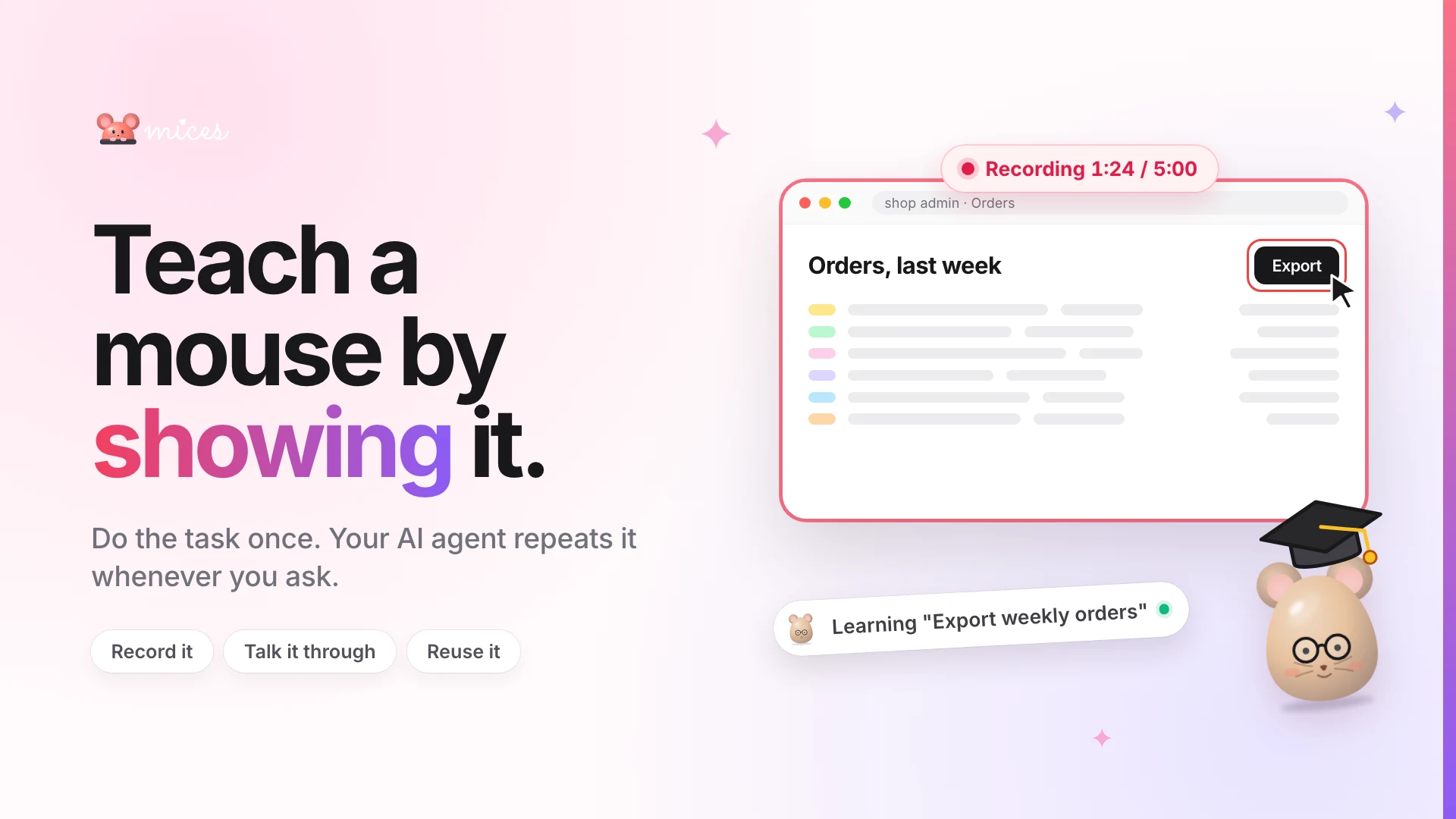
- Teaching a mouse a job by doing it once while it watches.
Your own time on the cloud computer counts too. If you open its desktop to sign in to a site or record a Teach a task demo, the minutes from opening it to closing it use computer hours.
What's free?
- Chats on This computer. Unlimited, on every plan.
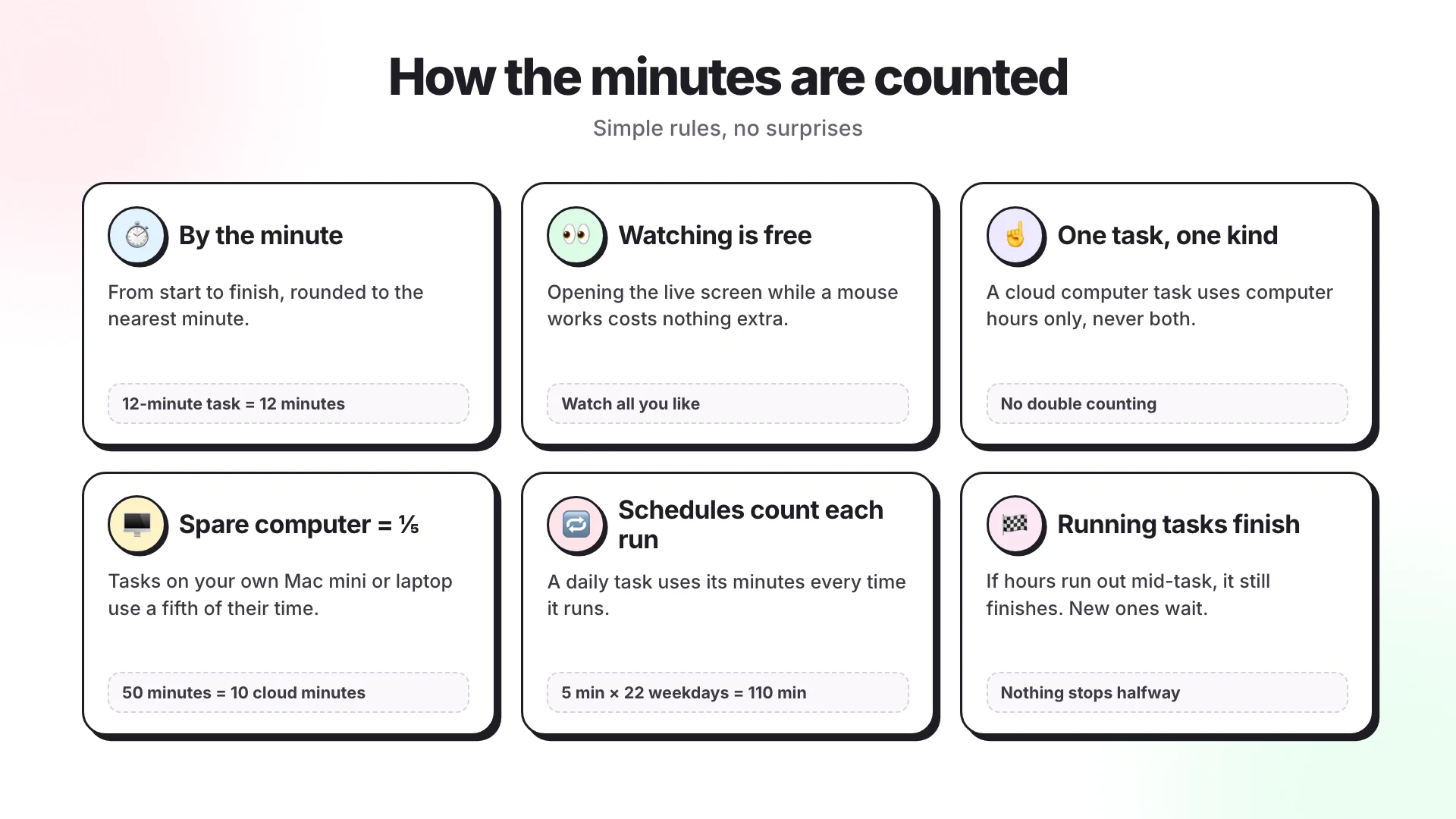
- Watching a mouse work. Opening the live screen while a mouse works on the cloud computer costs nothing extra; you only pay for the task.
- Tasks that fail right away. Time is rounded to the nearest minute, so something that ends in a few seconds costs nothing.
- Double counting. A cloud computer task uses computer hours only, never cloud hours at the same time.
How are the minutes counted?
- From start to finish, rounded to the nearest minute. A 12-minute research task uses 12 cloud minutes.
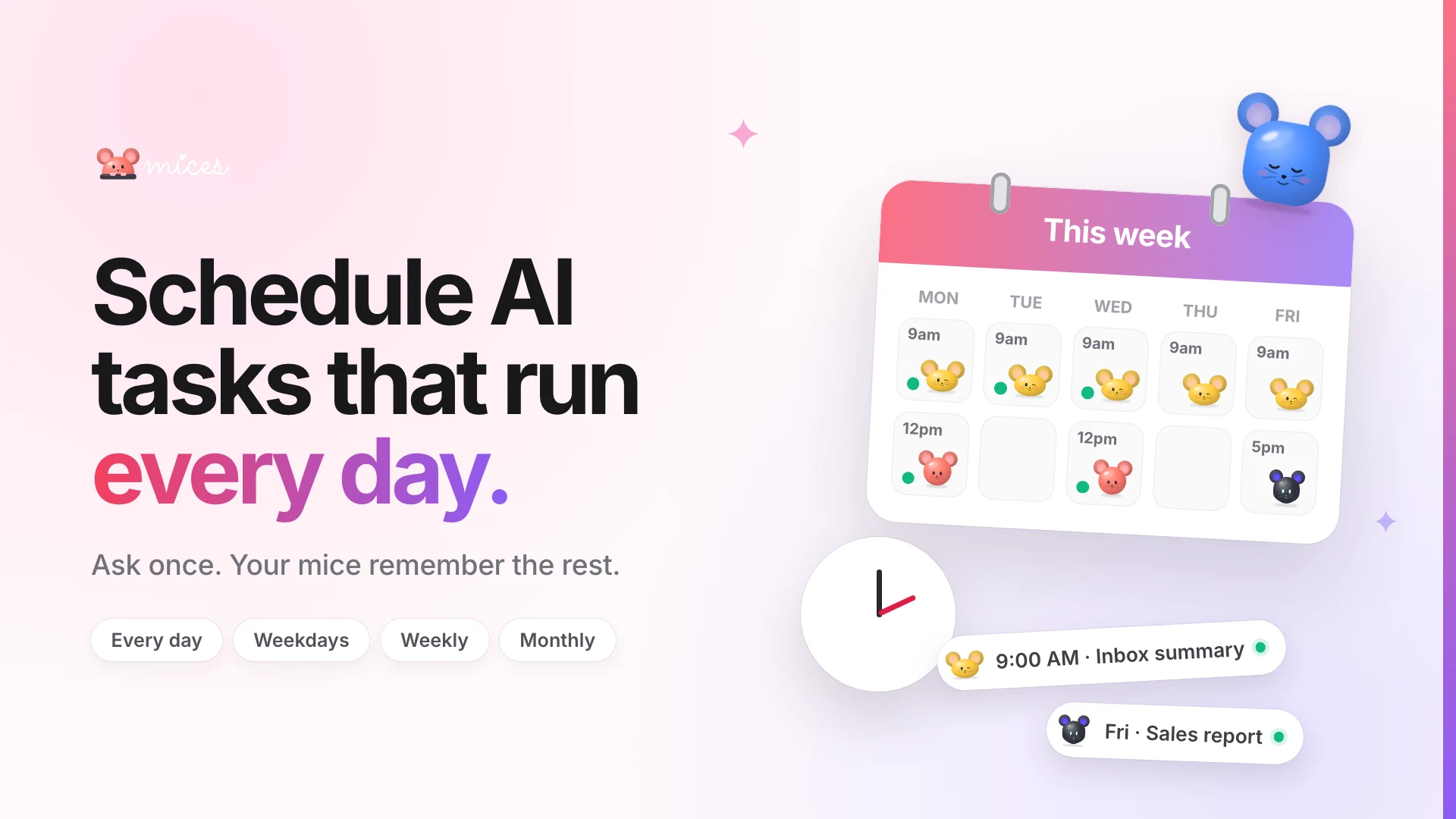
- A schedule counts each run. A 5-minute summary every weekday uses about 110 minutes a month (22 weekdays × 5 minutes).
- On your spare computer, a fifth. A 50-minute task on your Mac mini uses 10 cloud minutes.
- Your hands-on time on the cloud computer counts from when you open the desktop to when you close it, minus any time a mouse was already using it, so you never pay twice.
- Plan hours first. Your plan's hours are used first, then any extra hours you bought.
To see where you stand, open Billing in the app: the Cloud execution bar shows your cloud hours, and Computer execution shows your computer hours.
A day with Pip, counted
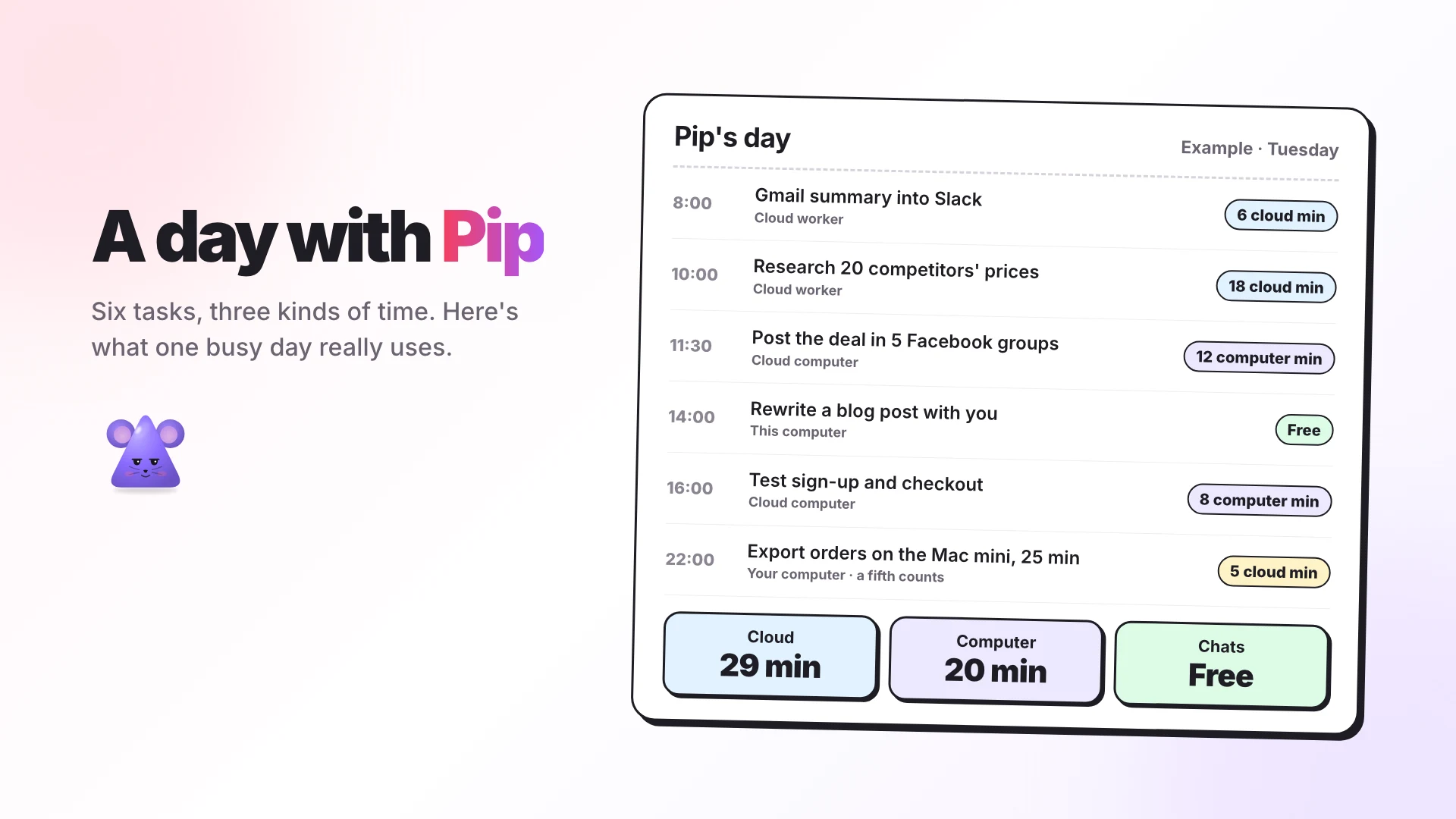
Here's a made-up but realistic day for a small business, to show how it adds up:
| Time | Task | Runs on | Uses |
|---|---|---|---|
| 8:00 | Summarize unread Gmail into Slack | Cloud worker | 6 cloud minutes |
| 10:00 | Research 20 competitors' prices into a sheet | Cloud worker | 18 cloud minutes |
| 11:30 | Post the weekly deal in 5 Facebook groups | Cloud computer | 12 computer minutes |
| 14:00 | Rewrite a blog post with you in the chat | This computer | Free |
| 16:00 | Test sign-up and checkout on your website | Cloud computer | 8 computer minutes |
| 22:00 | Export the day's orders on the office Mac mini (25 minutes) | Your computer | 5 cloud minutes |
That's 29 cloud minutes and 20 computer minutes. Do it every weekday (22 days) and the month comes to about 11 cloud hours and 7 computer hours, which fits inside Solo's 40 cloud hours and 8 computer hours.
How many hours do I need?
Each plan includes both kinds. To make the numbers easier to picture, here they are as 15-minute tasks:
| Plan | Cloud hours a month | Computer hours a month | About how many 15-minute tasks |
|---|---|---|---|
| Free | 2, one time | 1, one time | 8 cloud + 4 computer, to try it out |
| Solo | 40 | 8 | 160 cloud + 32 computer |
| Growth | 120 | 25 | 480 cloud + 100 computer |
| Business | 250 | 50 | 1,000 cloud + 200 computer |
| Agency | 600 | 125 | 2,400 cloud + 500 computer |
Annual plans get a year's worth at once, and lifetime plans come with one pool of hours that doesn't reset; see pricing for the details.
A simple way to guess: if most of your jobs live in apps with a connection, like Gmail, Google Sheets, Notion or HubSpot, you'll mostly use cloud hours. If they live on websites with no connection, like Facebook groups, supplier portals or your store's back office, plan for more computer hours.
What happens when hours run out?
- A task that's already running finishes. Nothing stops halfway.
- New tasks of that kind wait. Monthly and annual plans refill at the start of each billing period.
- You can buy extra hours any time from Billing in the app, from $20 a purchase. Extra hours never expire, they're used after your plan's hours, and bigger plans pay less per hour.
- Chats on This computer keep working, because they never use hours.
Tips to make your hours last
- Think and write on This computer. Drafting, rewriting and planning in the chat are free.
- Connect the app when there is one. A mouse reading Gmail through the Gmail connection works as a cloud worker. Doing the same thing on Gmail's website needs the cloud computer, and computer hours are the scarcer kind.
- Put a spare computer to work. On Business and Agency, tasks on your own Mac mini or old laptop use a fifth of their time. Here's how to run AI agents on a Mac mini.
- Sign in once. Log in to a site on the cloud computer one time and the mice stay signed in, so they don't spend minutes on login pages.
Every weekday at 8am, read my unread Gmail through the Gmail app and send me a five-line summary in Slack. Run it on the cloud worker; you don't need the cloud computer for this.
Questions people ask
Do chats on my own computer use any hours?
No. Tasks that run on This computer, right in your chat, are free and unlimited on every plan, including the free plan.
Does a cloud computer task use cloud hours too?
No. A task on the cloud computer uses computer hours only. Each task uses one kind of hours.
Does watching a mouse work cost anything?
No extra. Watching the live screen while a mouse works is part of the task you're already paying for. Only your own hands-on time on the cloud computer, like signing in to a site, uses computer hours.
Do unused hours roll over?
Plan hours refill at the start of each billing period and don't roll over. Extra hours you buy never expire. Free and lifetime plans come with a one-time pool of hours.
Where do I see how many hours I have left?
Open Billing in the Mices app. The Cloud execution bar is your cloud hours and Computer execution is your computer hours, with any extra hours listed below them.