Teach an AI agent a task by showing it
Teach an AI agent a task by doing it once while it watches. Mices turns your recorded demo into a skill your mouse repeats whenever you ask for it.

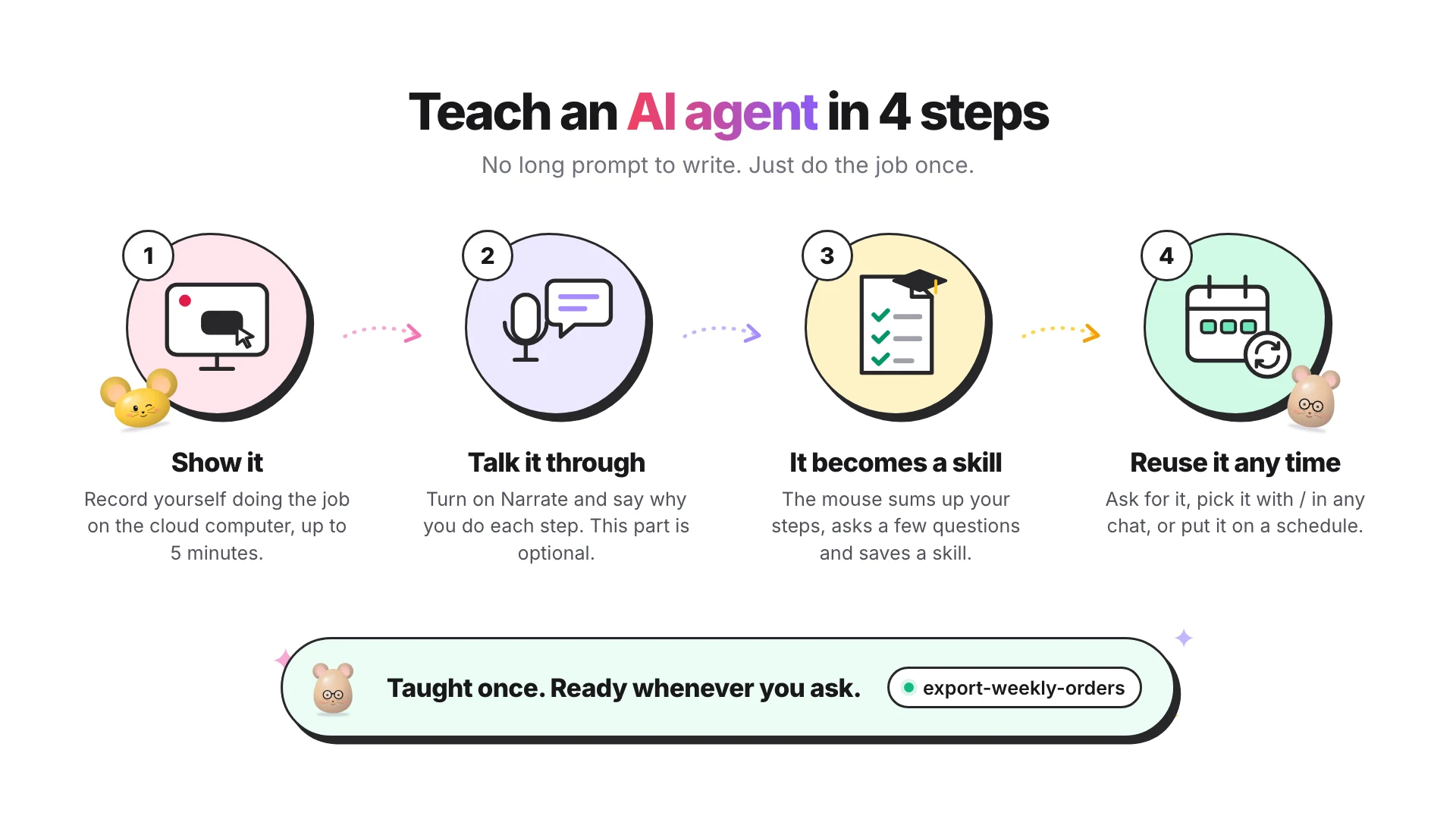
You can teach an AI agent a task the same way you'd teach a new teammate: do it once while it watches. In Mices, you record yourself doing the job on your cloud computer, talk it through if you like, and your AI helper (we call them mice) turns that demo into a skill it can repeat on its own.
No long prompt to write and no flowchart to build. Here's why showing works so well, how to record a good demo, and how to reuse what you taught.
Why show an AI agent instead of writing instructions?
Writing down every step of a job is slower than it sounds. You skip the parts that feel obvious to you, like which menu the export button hides in or which tab you always pick first. The agent then guesses, and guesses are where things go wrong.
Showing fixes that:
- Clicks say what words miss. The demo shows the exact button, the exact menu and the exact order.
- It works on any website. Plenty of jobs live in places with no app connection: a supplier portal, an old admin page, your store's back office. If you can click through it, you can show it.
- Your reasons come along too. Say why you do a step while you record, and the agent knows what to do when something looks a little different next time.
- It's how you'd train a person anyway. Nobody hands a new hire a long document and walks away. You sit them down and show them.
Showing works best for jobs you do the same way every time: exporting a report, updating a listing, copying numbers from one site into a sheet. For jobs that need fresh judgement each time, like answering customers, plain instructions are still a better fit.
What does Teach a task record?
When you record a demo, Mices captures three things on your cloud computer:
- The screen, as a video.
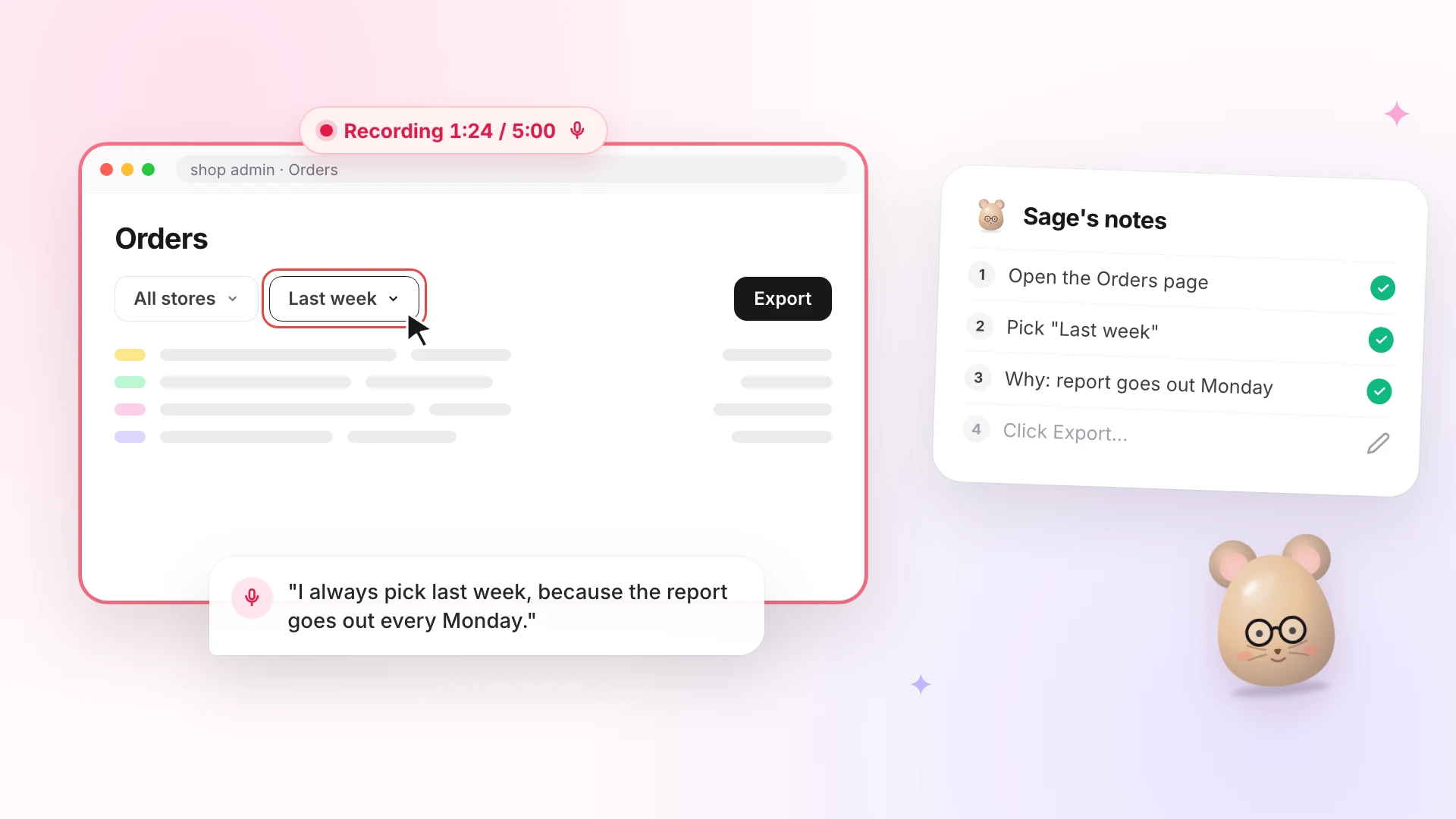
- Every step in the browser: the pages you open, the buttons you click (with their labels), what you type, and when you press Enter. Password fields are saved as (hidden), never as the password itself.
- Your voice, if you turn on Narrate. What you say is turned into text and lined up with your clicks, so the mouse knows why you did each step.
Everything goes into a Teach sessions folder in your files: a timeline of the steps, screenshots of each moment (with a red box where each click landed), and the full recording. The mouse gets the timeline and the screenshots. The video stays in the folder for you.
How to teach an AI agent a task in Mices
Teaching happens on your workspace's cloud computer, so you need computer hours, which come with the paid plans (see pricing). Then:
- 1
Open the computer
Open a chat with the mouse you want to teach. In the panel on the right, find the computer card and click Open computer. The very first time it says Create computer and sets one up for you.
- 2
Click Teach
Click Teach on the card, or Teach a task in the big view. Type what you're teaching, like Export weekly orders.
- 3
Turn on Narrate if you want to talk
Switch on Narrate to explain as you go. Mices asks to use your microphone the first time. You can also skip it and just click.
- 4
Record the job
Click Start recording and do the task the way you always do. A red frame and a timer show while it records. You have up to 5 minutes, and you click Done when you finish.
- 5
Press Send
Your demo lands in the chat with a message ready to go. Add anything the demo can't show, then press Send.
What happens after you press Send?
The mouse reads the timeline, looks at every screenshot, and then:
- Tells you what it understood as a short numbered list in plain words. It points out the values that look like they change each time, like a date or a search term.
- Asks up to three questions, only what the demo didn't already answer: which values change each run, where the result should go, and how to tell the job worked.
- Writes the skill. Each step becomes a goal plus how to spot the right button by its label and visible text. Your mistakes and detours are left out, and one-off values become inputs it fills in each time.
- Keeps it. The skill is saved in your workspace and becomes part of how that mouse works, so it loads in everything the mouse does from now on.
- Offers a test run on the computer with real values, so you can watch it do the job once.
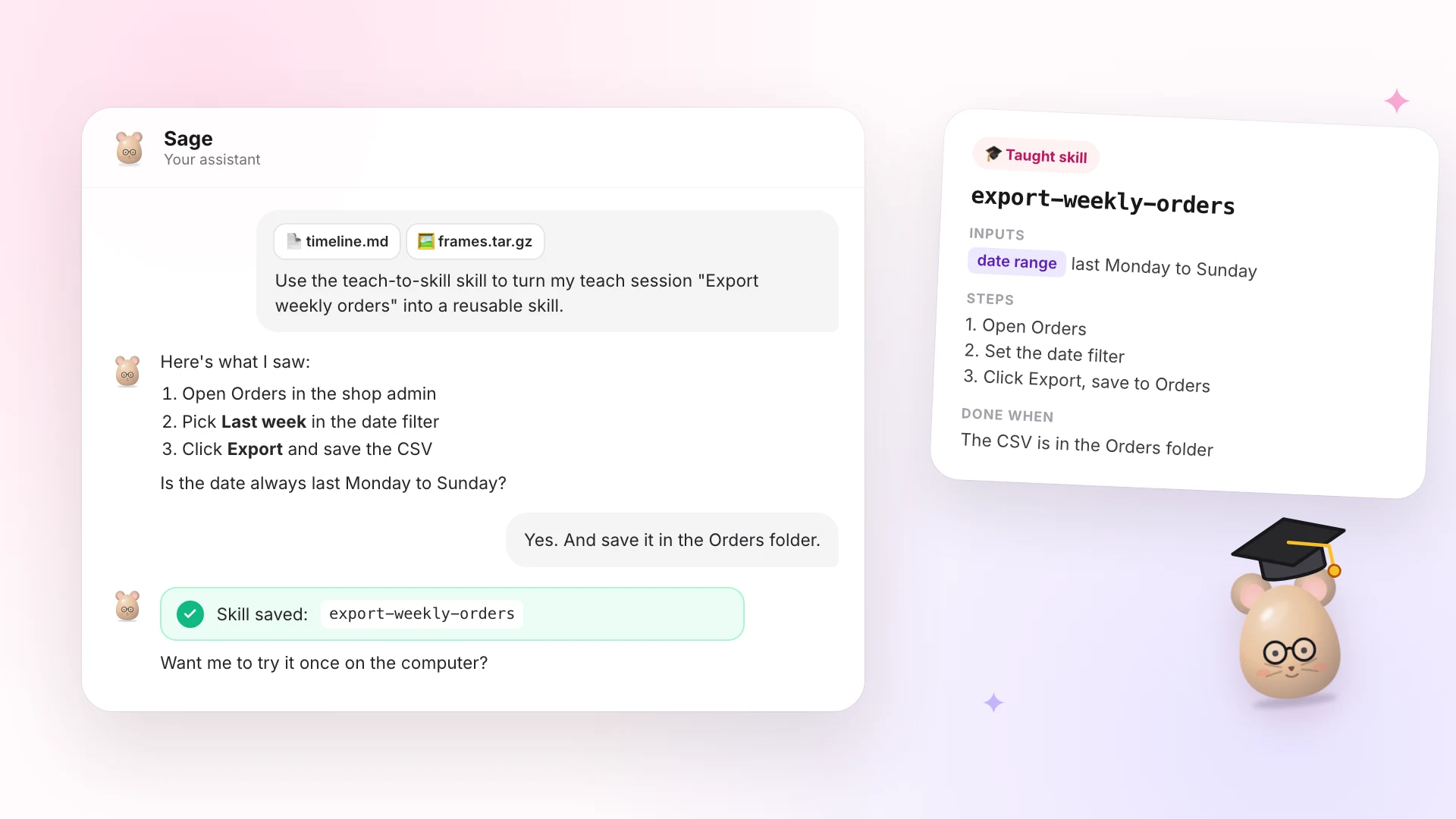
Use the teach-to-skill skill to turn my teach session "Export weekly orders" into a reusable skill. The date range is always last Monday to Sunday. Save the CSV in the Orders folder and tell me how many orders there were.
How do you reuse a skill you taught?
Teaching takes a few minutes once. After that, the skill is there every time:
- Just ask. Tell the mouse "export last week's orders" and it follows what you showed it.
- Use it with another mouse. Taught skills live in your workspace. In any chat, type / and pick it from the list.
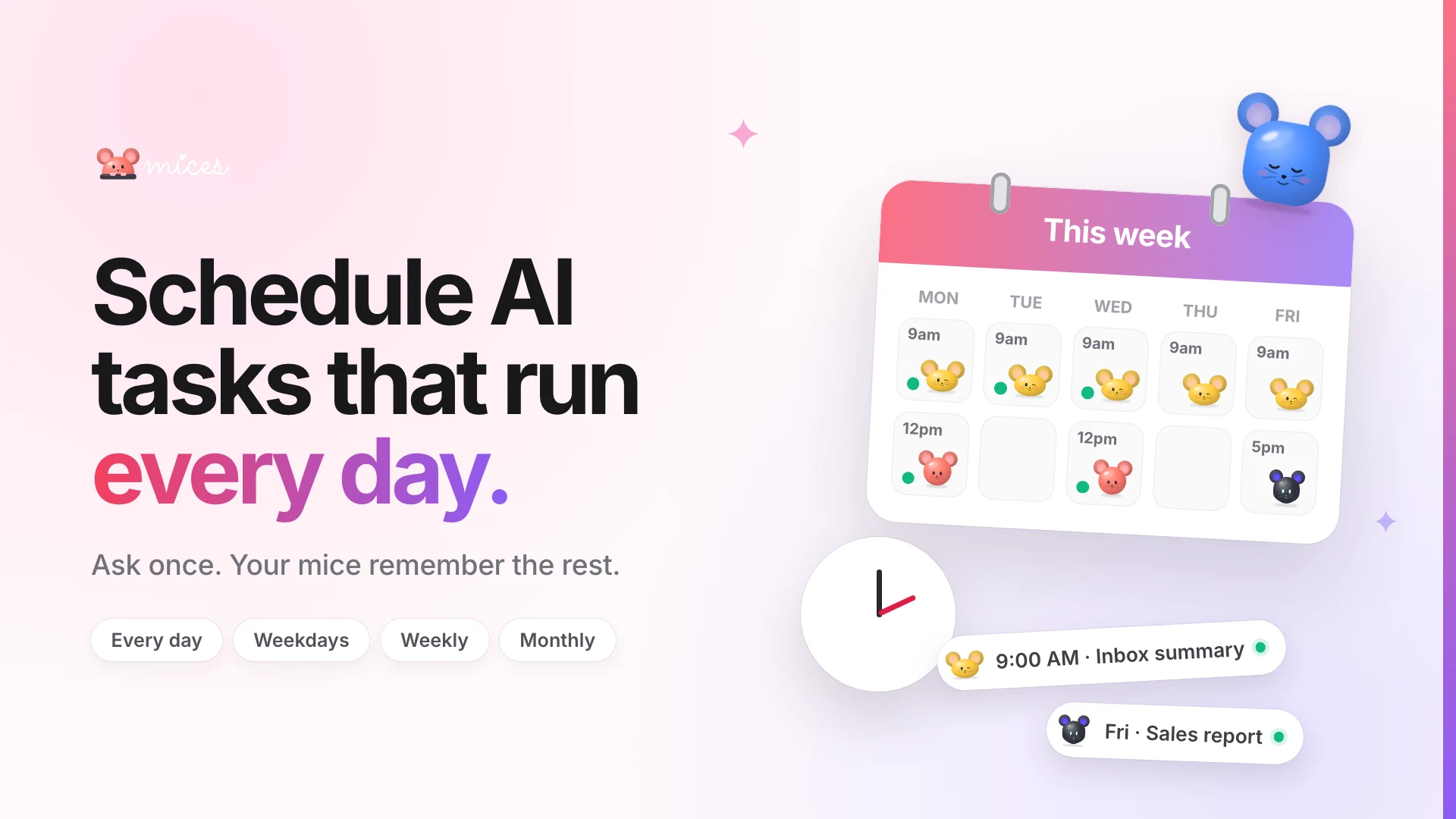
- Put it on a schedule. Ask the mouse to run it every Monday at 9am, and it repeats the job while you do other things. Here's more on scheduling AI tasks.
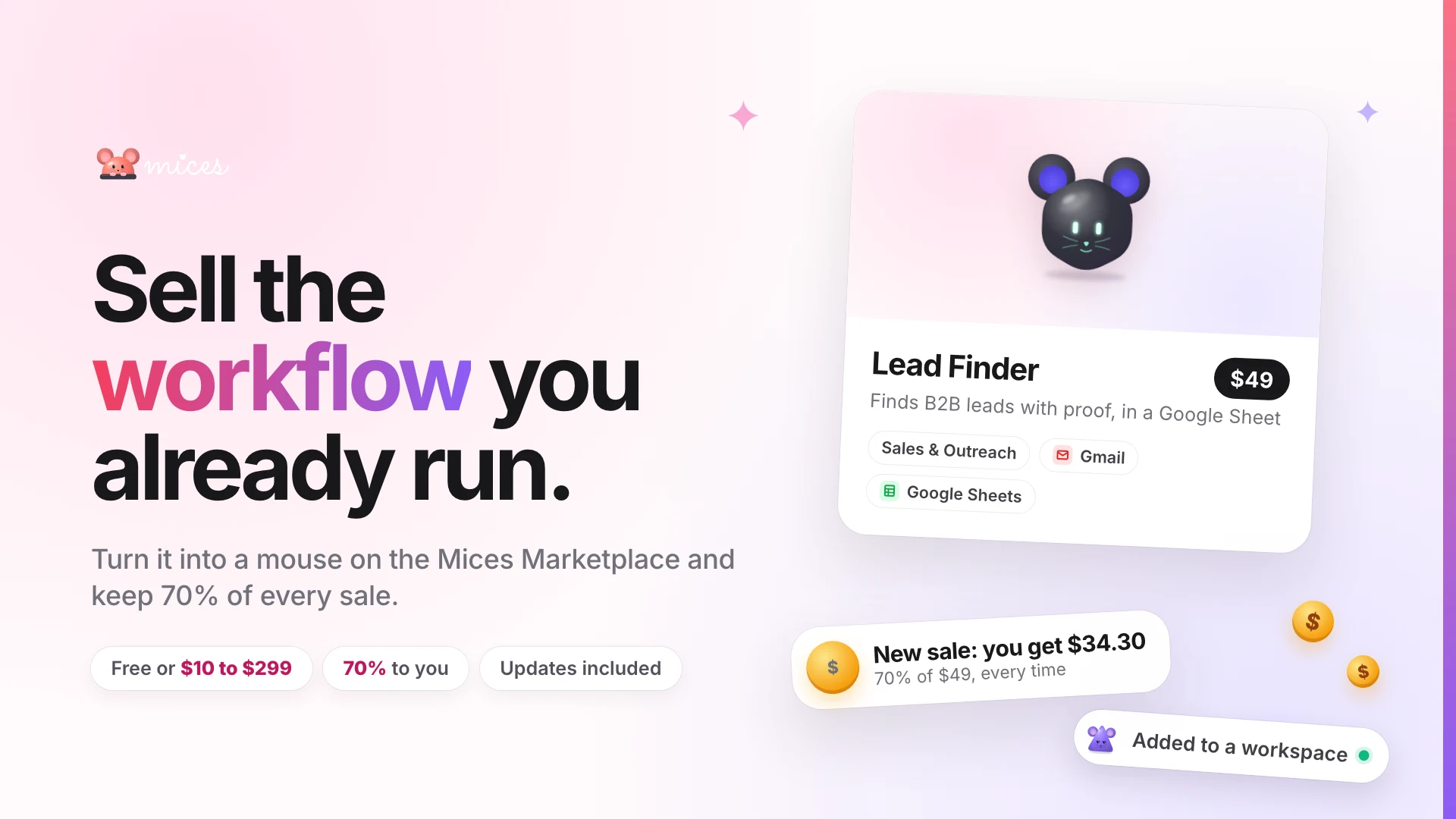
- Share it. If you sell the mouse on the Marketplace, the skills it keeps go with it.
Good first jobs to teach are the small weekly chores that eat your Monday: a report you download, numbers you copy into a sheet, a listing you update. If a job is more about finding things than clicking through the same pages, like finding leads from Product Hunt or finding LinkedIn leads, plain instructions in the chat usually do the trick.
How to record a good demo
A few habits make the skill much better:
- One job per demo. Start at the first page and stop when the job is done.
- Go a little slower than usual. Pause on the page before you click, so the screenshot shows what you saw.
- Say why, not only what. "I pick last week because the report goes out on Monday" teaches more than "now I click the filter".
- Use real but safe values. A real search term or date helps the mouse see the pattern.
- Split long jobs. If it takes more than 5 minutes, record two demos and teach them one after the other.
Don't worry about small mistakes. The mouse leaves out detours and repeated clicks when it writes the skill.
Questions people ask
How long can a demo be?
Up to 5 minutes. The recording stops on its own at 5:00. For a longer job, record it in two parts and teach each one.
Do I have to talk while I record?
No. Narrate is optional. Clicks and typing are often enough, but a few words about why you do each step help the mouse cope when a page changes a little.
Can the AI agent see my passwords?
No. Password fields are saved as (hidden), and the skill assumes you're already signed in. If a sign-in is needed during a run, the mouse stops and asks.
Can other mice use what I taught?
Yes. The mouse you taught uses the skill in all its work, and any other mouse in the workspace can use it when you type / in the chat and pick it.
What if the website changes later?
Taught skills find buttons by their labels and visible text, so small changes are fine. If a page looks completely different, the mouse stops and tells you what it sees, and you can record a fresh demo.