Schedule AI tasks to run every day
Set up AI tasks that run every day, every weekday or every week. Ask a mouse in plain words, pick where it runs, and get the results in the same chat.

You can schedule AI tasks in Mices by asking for them in plain words, like "every weekday at 9am, sum up my inbox". Your mouse turns that into a schedule, shows you a card to confirm, and from then on the work happens on its own. Each run posts its results back in the same chat, ready when you are.
This guide covers what's worth scheduling, how to set it up, where the work runs, how to change it later, and what happens when two tasks want the same time.
What can you schedule an AI agent to do?
Anything a mouse can do once, it can do on repeat, even a job you taught it by showing it once. If you'd do a job the same way every time, it's a good fit for a schedule. Here are jobs people put on repeat first:
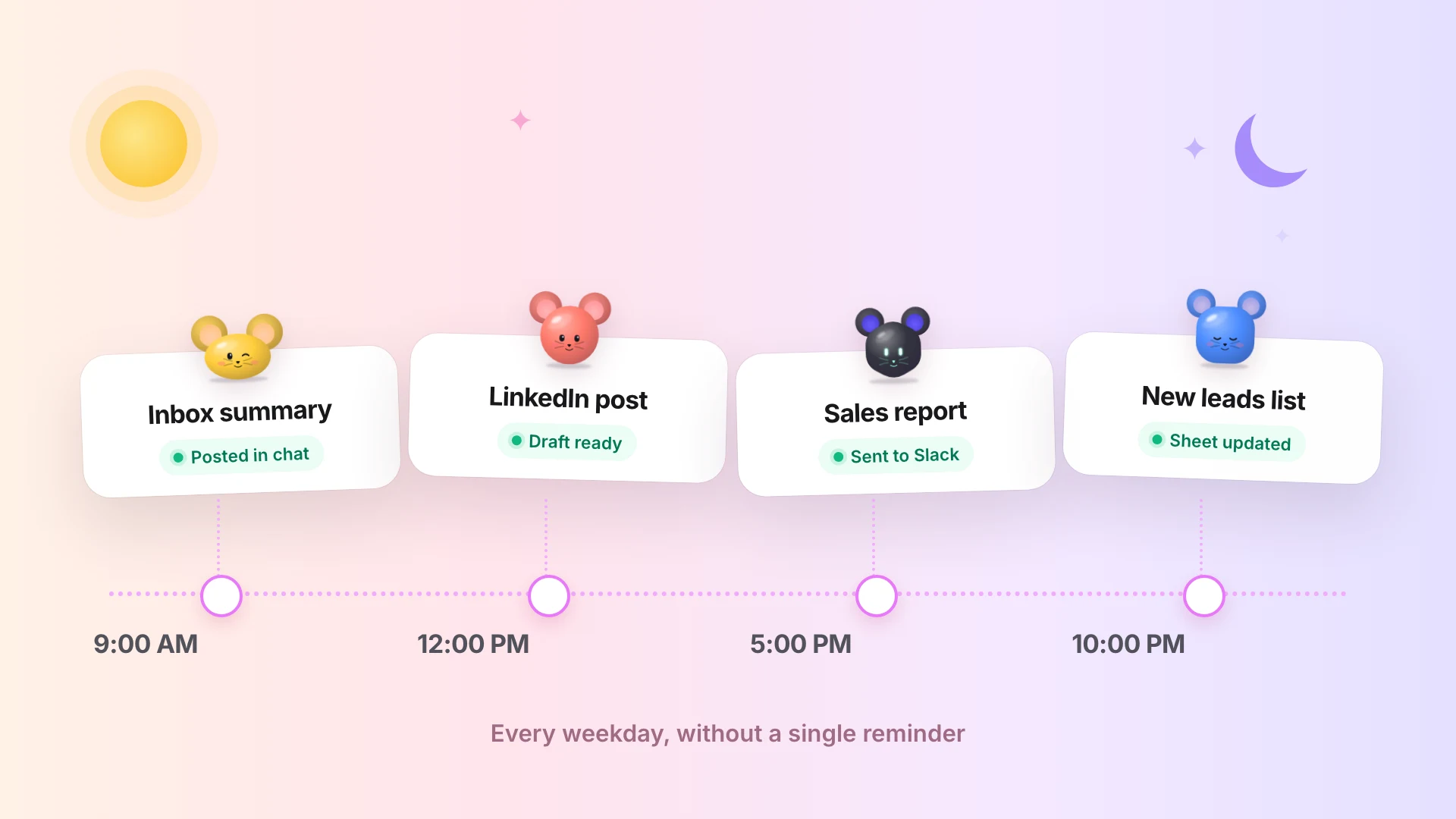
- Every weekday at 9am: read yesterday's email in Gmail and post a short summary of who needs a reply.
- Every morning: write a LinkedIn post in your voice. See how to automate your LinkedIn posts.
- Every day: design a fresh carousel with captions (more in automate your social media with AI), like in automate your social media carousels.
- Every day: go through new launches and pick out leads, the way finding leads from Product Hunt works.
- Every Monday: build a new list of people to contact. Here's how to find LinkedIn leads with AI.
- Every morning: look for new roles that match your skills with remote jobs found by AI.
- Every Friday: pull the week's numbers from HubSpot into a short sales report and post it in Slack.
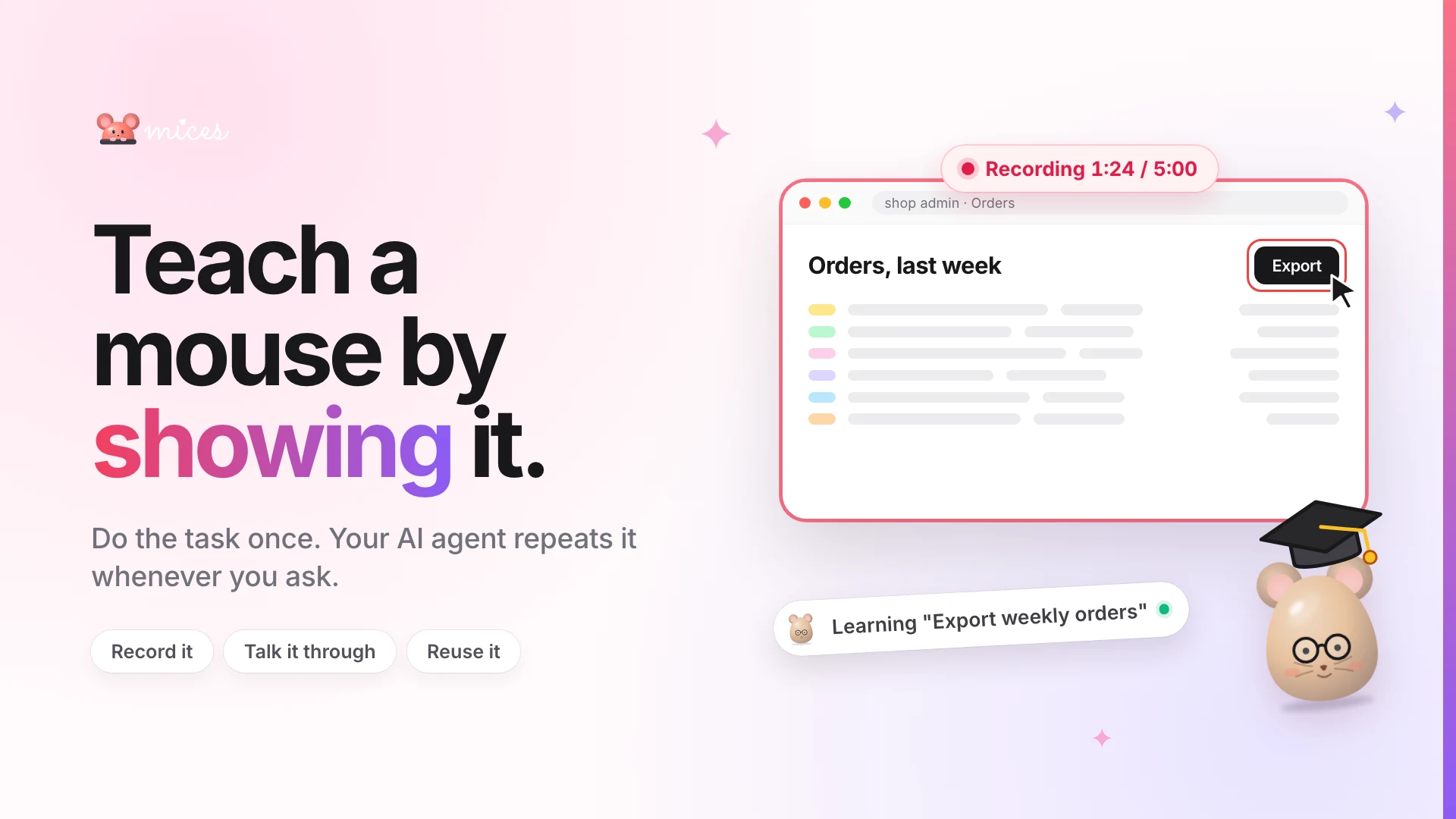
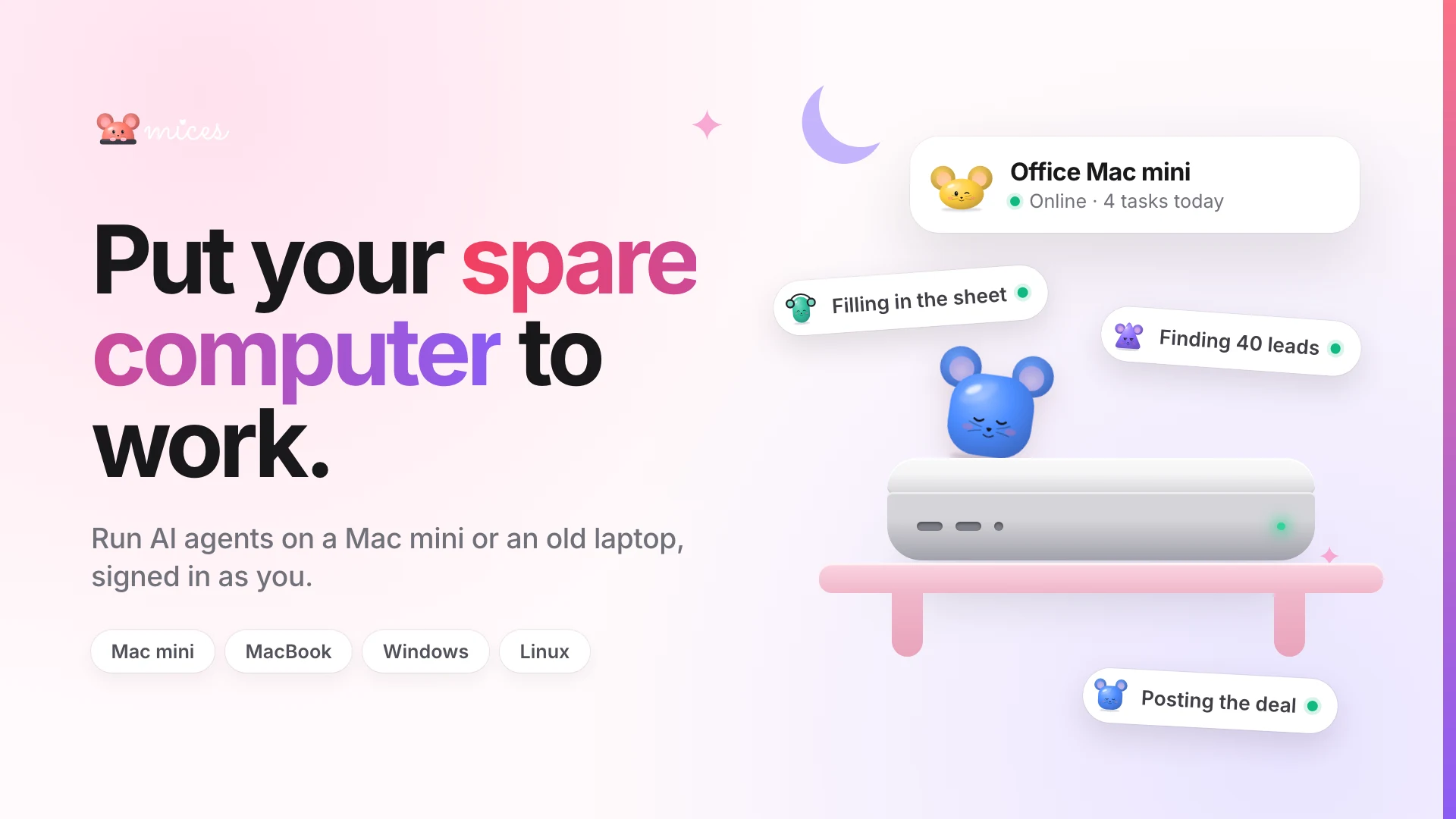
- Every week: post your deal in your Facebook groups from your own signed-in Chrome, on a spare Mac mini or old laptop.
Short jobs, long jobs, daily jobs, monthly jobs: the mouse does the same careful work each time, and you only check the results.
How do you schedule an AI task in Mices?
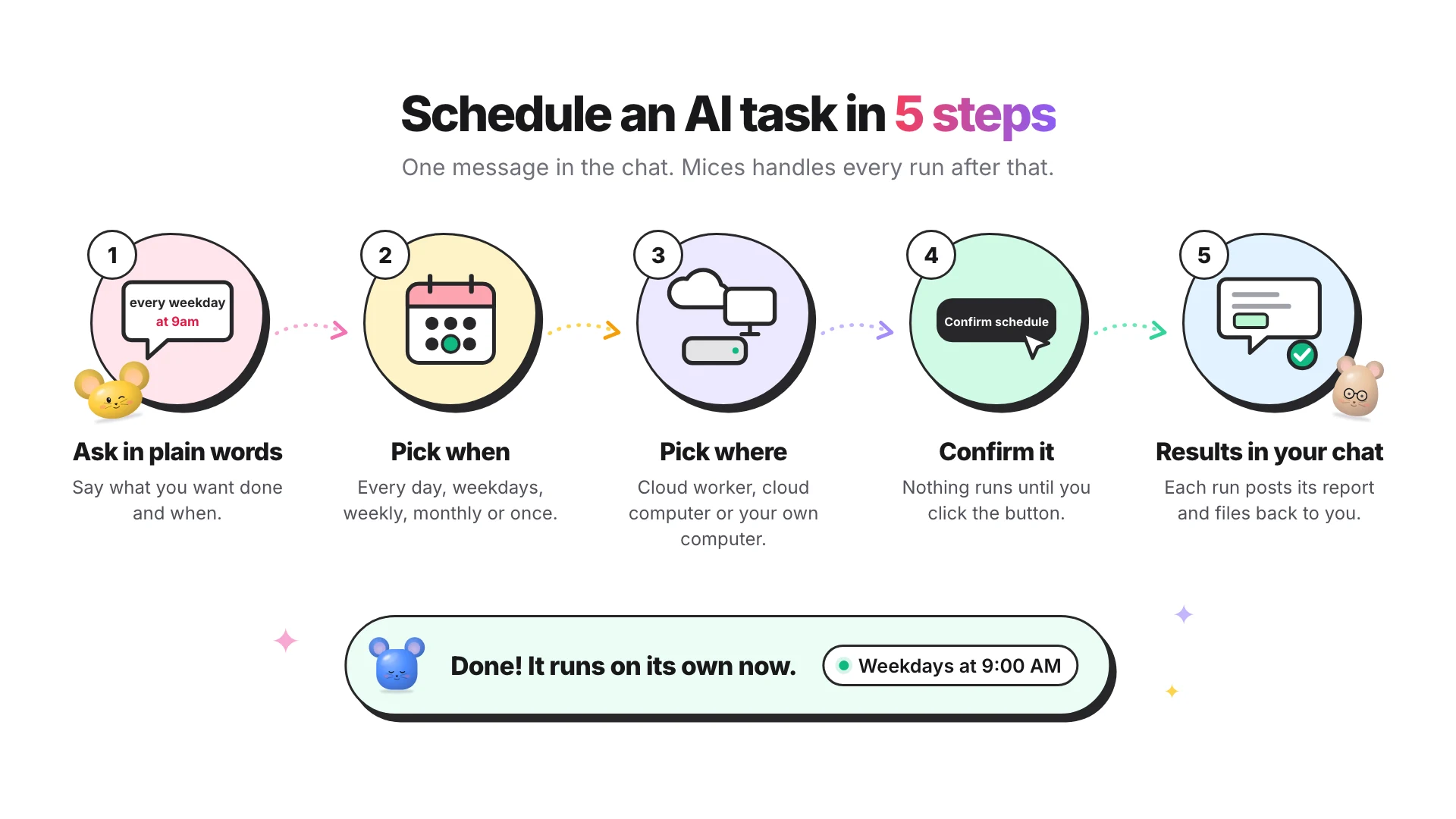
Open a chat with the mouse that should do the job and tell it what and when in one message. That's really all. Here's what happens next:
- 1
Ask in plain words
Say what you want and when, like every weekday at 9am or every Monday morning. If you leave out the time, the mouse suggests one.
- 2
Check the card
The mouse shows a card with When, Where and Task. Click Edit instructions if you want to tweak the task first.
- 3
Pick where it runs
Where is the cloud worker, the cloud computer or one of your own computers. Not right? Just ask the mouse to change it.
- 4
Click Confirm schedule
Nothing runs until you confirm. Not yet leaves it off.
- 5
Get the results in your chat
Every run posts its report and any files it made back in the same chat, so you always know where to look.
Every weekday at 9am, read the emails I got in Gmail since yesterday morning and give me a short summary here: who needs a reply today, anything about money or deadlines, and what I can skip. Keep it under 150 words.
Where does a scheduled task run?
Schedules don't run in the chat on the laptop you're using, so the ones in the cloud keep going even when you close Mices. You pick one of three places:
| What it has | Good for | Hours used | |
|---|---|---|---|
| Cloud worker | Our servers in the background, with your connected apps. No screen or signed-in browser. | Research, writing, Gmail, Slack, Sheets | Cloud hours |
| Cloud computer | Your workspace's cloud desktop, with a browser that stays signed in | Websites that need a login | Computer hours |
| Your computer | A spare Mac mini or laptop you connected in Computers, with its apps and its Chrome | Sites that need your own accounts | A fifth of the time in cloud hours |
The mouse recommends one with a short reason. Your own computer needs the Business or Agency plan, and it has to be awake with Mices open. If it's asleep, the task waits until it's back. Here's how to set up a spare Mac mini or old laptop.
How do you change a schedule later?
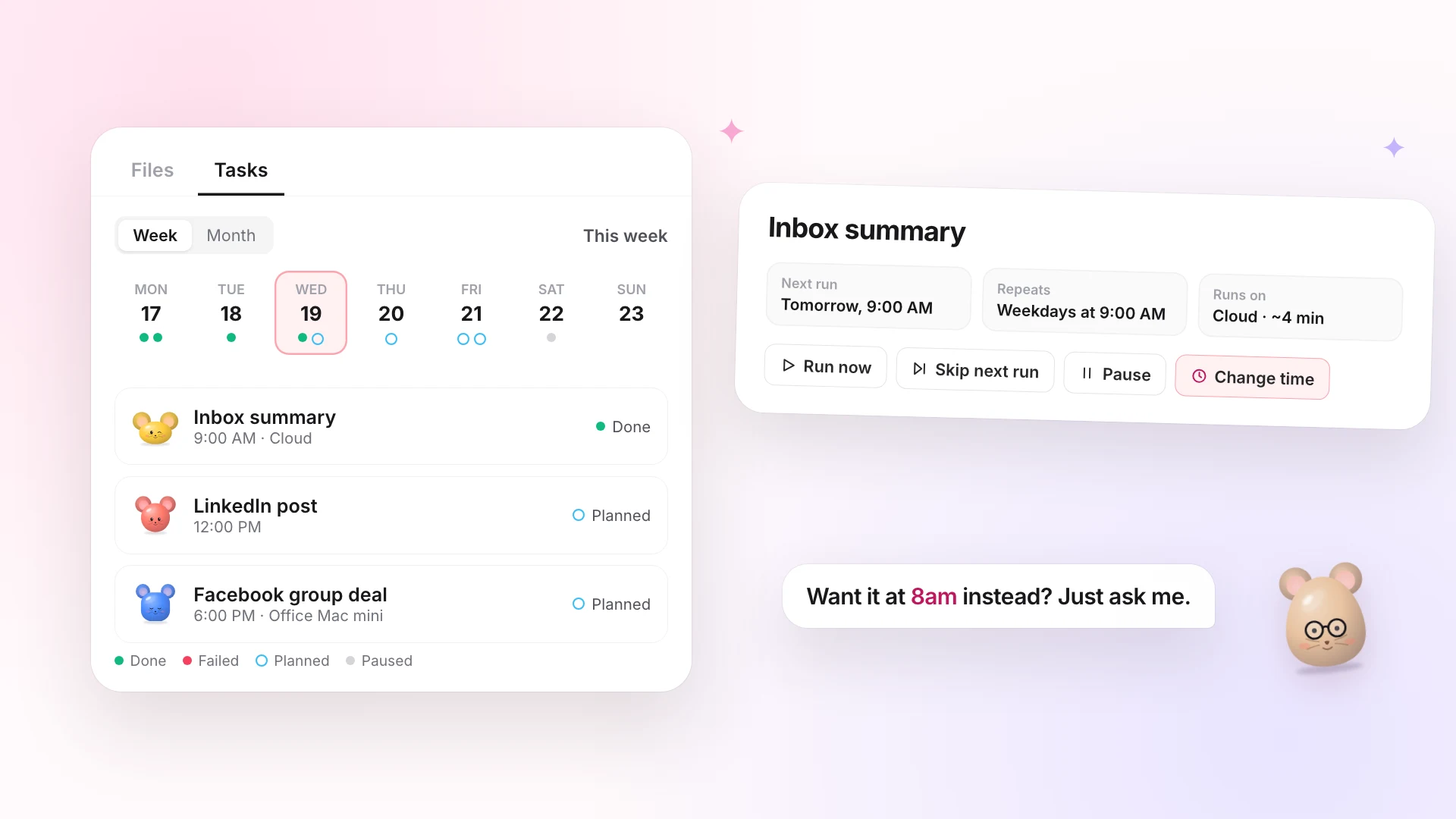
Open the mouse's panel next to the chat and go to the Tasks tab. You'll see a Week or Month calendar of that mouse's tasks in this chat, with a dot for each run: Done, Failed, Running, Planned or Paused. Times are shown in your own time zone.
Click a task to open its details. From there you can:
- Run now: one extra run, without moving the planned ones.
- Skip next run: skip just the next one.
- Pause and Resume: take a break and pick it up later.
- Change time: every day, every weekday, every week on a day, or once on a date.
- Edit the instructions under What it does. The next runs follow the new instructions, and past runs stay with it.
- Cancel: the planned runs stop. A run already in progress may still finish.
You can also just ask the mouse: "move my inbox summary to 8am". It shows a card with the old and the new side by side, and the schedule keeps its past runs. For timings the editor doesn't offer, like every two hours or the 1st of every month, asking the mouse is the way.
What happens when two tasks want the same time?
A chat works on one task at a time, and so does a computer. Mices plans around that instead of dropping runs:
- A busy chat makes the run wait, not skip. If the chat is still working on something when a run comes due, the run waits its turn and starts as soon as the chat is free. If a repeating task's last run is still waiting when the next one comes due, that next one is skipped, so runs never pile up.
- The mouse checks the computer's day first. Before it books a schedule on the cloud computer or your own computer, the mouse looks at that computer's day. If your time is taken, it tells you what's there and offers the next free time, or you can keep your time and let it wait its turn.
- You see the day on the card. For computer schedules, the card shows that computer's day with your new task on it, and says either "Free then." or that it overlaps another task and would start late.
- The Computers page shows each computer's day, like Free now, Busy, or Free until 3:00 PM.
How long can a scheduled task run?
Each run has a time limit that comes with your plan: 60 minutes on Free, Solo and Growth, and 120 minutes on Business and Agency. Business and Agency runs also get priority start when computers are busy.
About 10 minutes before the limit, Mices tells the mouse to wrap up: finish the item it's on, save what it has, and report what's done and what's left. A second nudge comes about 3 minutes before the end. So even a big job hands you something useful instead of stopping halfway with nothing to show.
Runs use your plan's hours: cloud hours on the cloud worker, computer hours on the cloud computer, and a fifth of the time in cloud hours on your own computer. You can compare plans and hours on the home page.
Will a scheduled AI agent do things without asking?
Confirming the schedule is your approval of the task on the card. During a scheduled run, the mouse doesn't send messages, publish, buy anything or do anything that can't be undone unless the task you confirmed asks for that exact action.
So be clear about the last step. "Write a LinkedIn post and publish it" lets the mouse publish. "Write a LinkedIn post" leaves you a draft to check. Both are fine; just pick the one you mean.
Questions people ask
Can I schedule an AI task every hour?
Yes. Ask the mouse, for example "every two hours". The Change time editor covers every day, every weekday, every week and once. For anything else, like hourly or monthly, ask the mouse to change it.
Does my computer need to be on for scheduled tasks?
Not for the cloud worker or the cloud computer: they run with the app closed. A schedule on your own computer needs that computer awake with Mices open. Tasks sent while it's asleep wait until it's back.
What happens if a scheduled run fails?
It shows as Failed in the Tasks tab with its error, and the next run still happens on time. You can ask the mouse to try again.
Can I change a schedule without losing its history?
Yes. Change time, Edit and asking the mouse all change the same schedule, so its past runs stay with it. The mouse never deletes a schedule and makes a new one just to change it.
What time zone does a schedule use?
A repeating schedule keeps the time zone it was set in. If yours is different, the Tasks tab says so, like "Weekdays at 9:30 AM, Kolkata time".