Run AI agents on a Mac mini or an old laptop
Turn a spare Mac mini, MacBook or Windows laptop into a computer for AI agents. They use its apps and your signed-in Chrome while you do other things.

You can run AI agents on a Mac mini, an old MacBook or a Windows laptop that hardly leaves the drawer. Connect it to Mices, and your AI helpers (we call them mice) work on that computer the way you would: in its apps, in its files and in the Chrome you're already signed in to.
So you hand out the work, close your own laptop, and come back to finished tasks. Here's why it works so well, which computers are a good fit, and how to set one up in about a minute.
Why run AI agents on your own computer?
Most AI agents work in a browser in the cloud. That's great for lots of jobs, and in Mices the cloud browser stays signed in once you sign in. But it starts out empty: no logins, no files, no history. You sign in to every site again, and some sites ask extra questions when you sign in from somewhere new.
A computer you already own skips all of that:
- Your logins are already there. Facebook, LinkedIn, your CRM and the other sites you use every day. Mice ask which Chrome profile to use, so they're signed in from the first click.
- Your apps and files are there. The desktop apps you already paid for and the folders you already keep.
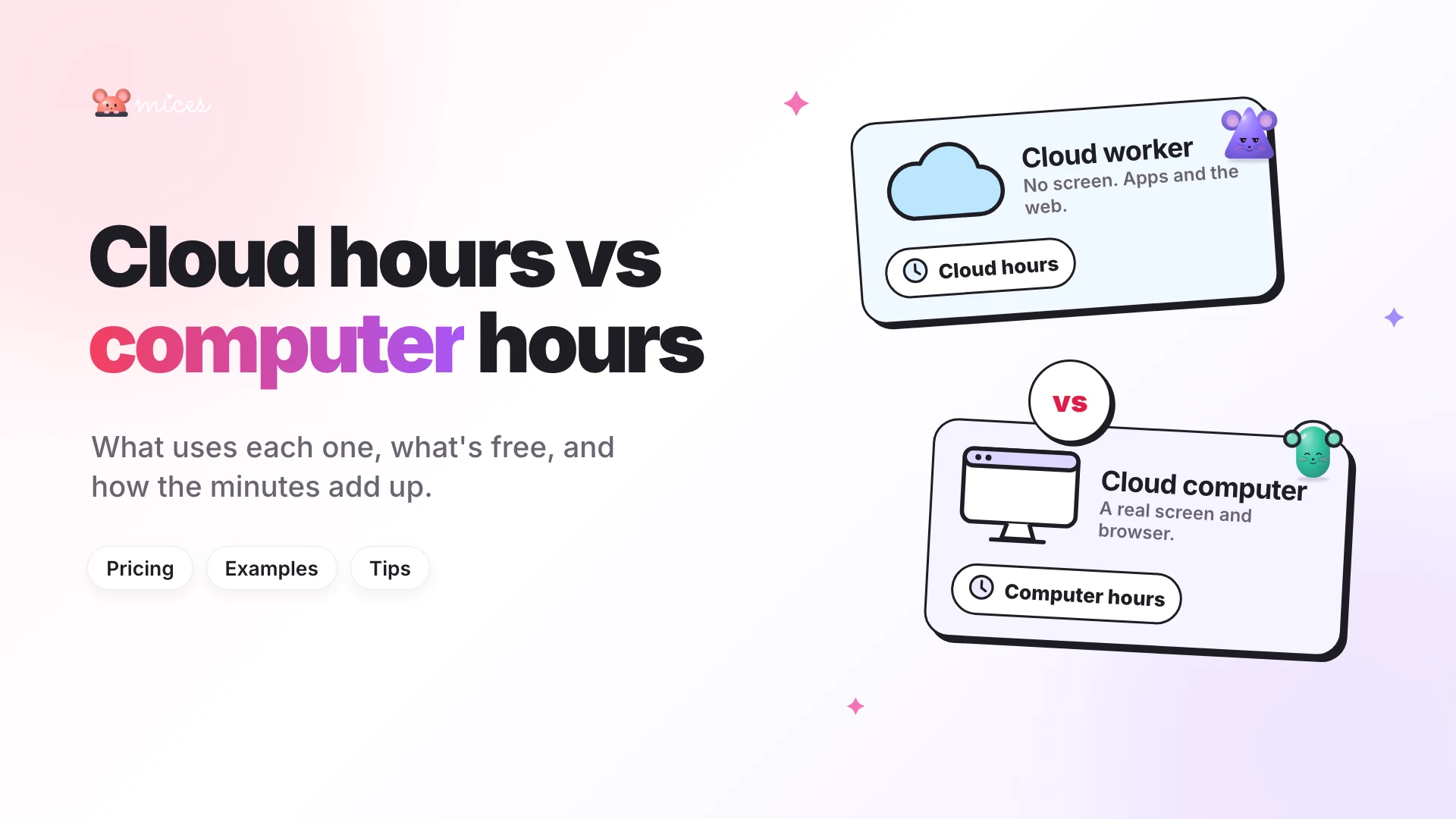
- It's light on hours. The work runs on your own hardware, so a task there uses only a fifth of its time in cloud hours. A 30 minute task uses 6 minutes.
- Your main laptop stays yours. The mice click and type on the spare computer, not on the one in front of you.
- Old hardware gets a new job. The laptop you replaced a while ago is plenty for browsing, posting and filling in sheets.
Which computers work best?
Almost any computer you don't use much will do. Mices runs on Mac, Windows and Linux, so pick whatever you have.
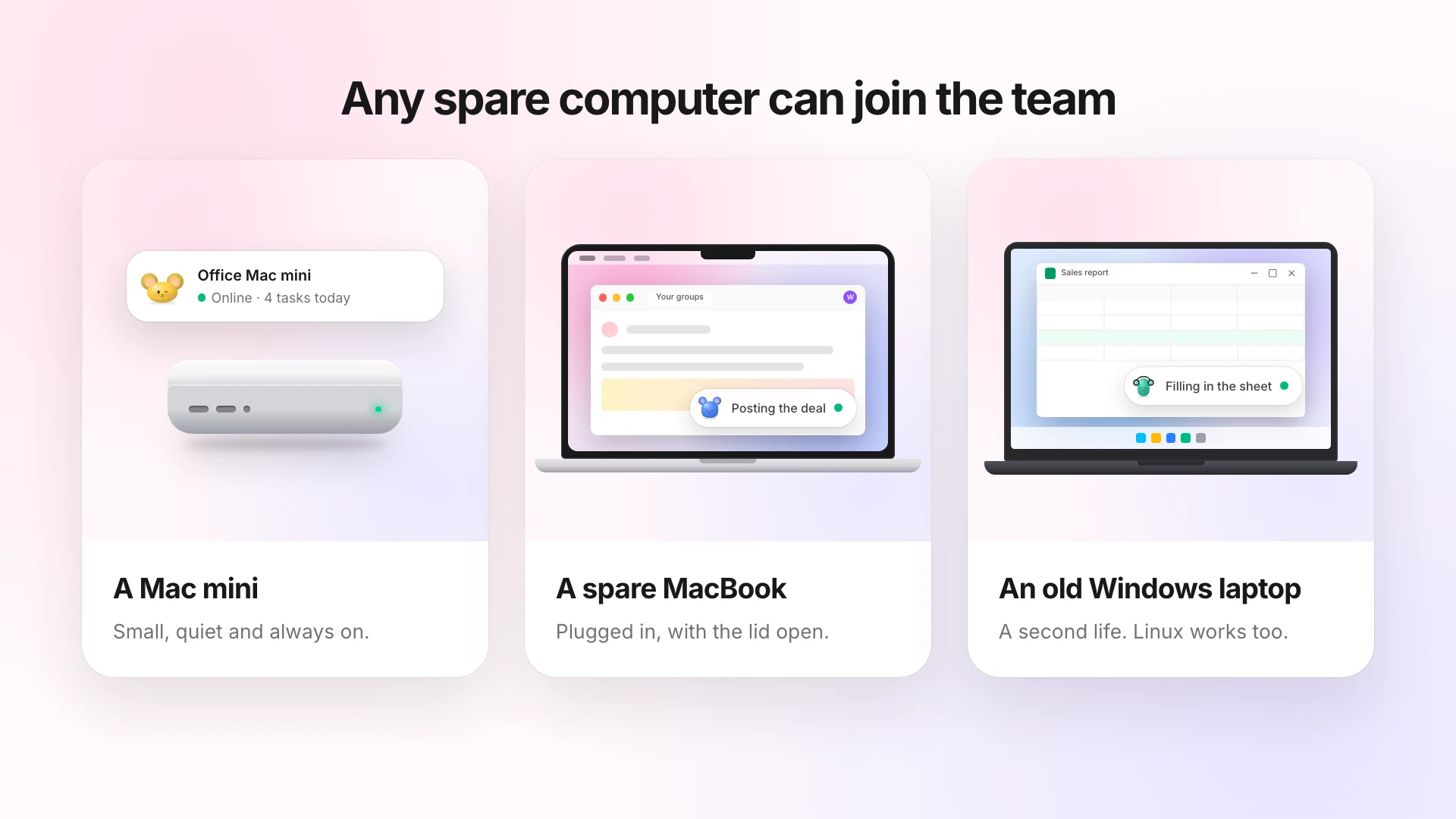
A Mac mini on a shelf
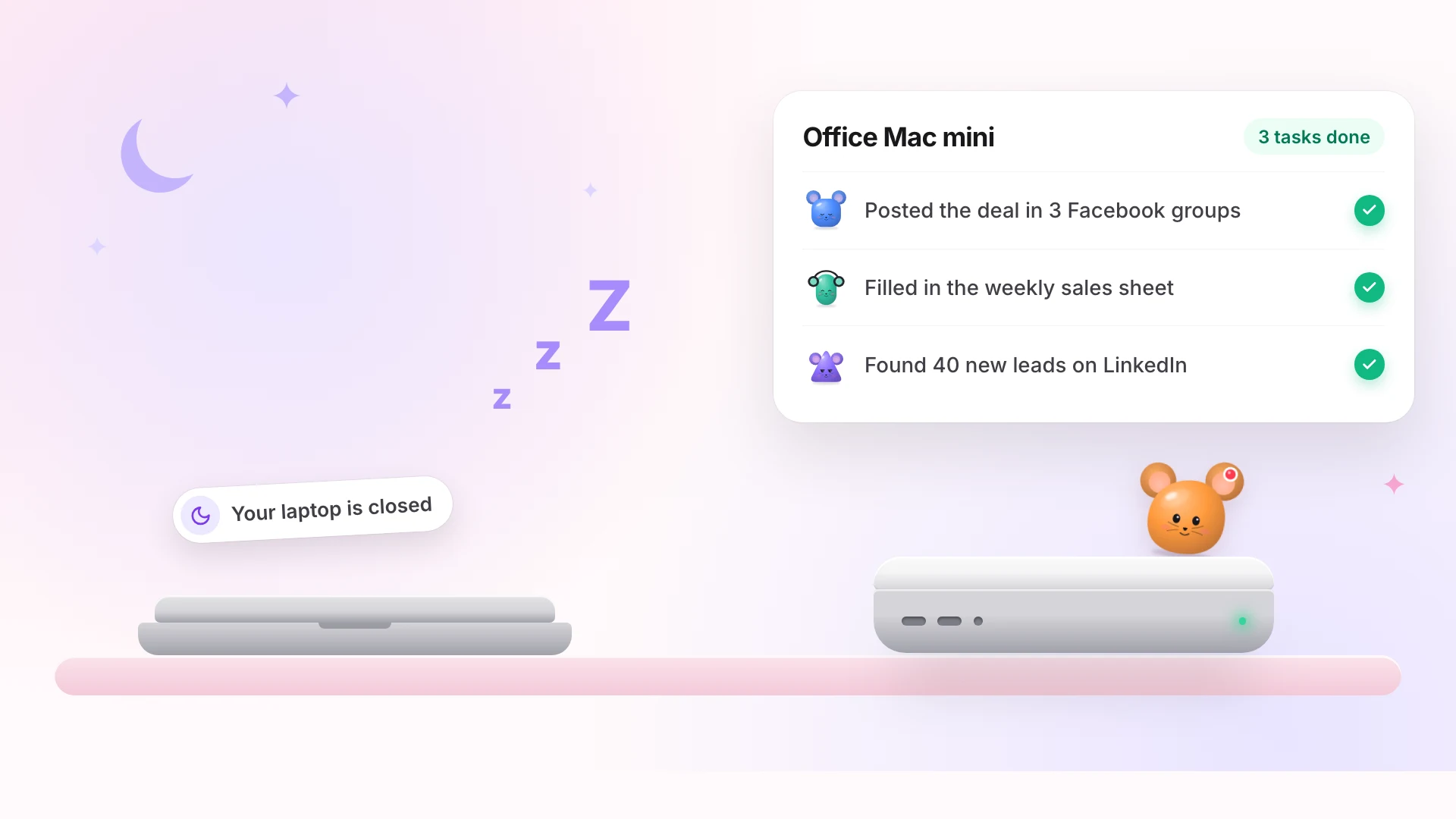
The favorite. It's small, quiet and uses very little power, so it's happy to stay on all day. It takes tasks even while your laptop is closed and you're asleep. Weighing OpenClaw for this? Here's Mices vs OpenClaw.
A MacBook you rarely open
It already has your apps and your logins. Keep it plugged in with the lid open on a desk, and the mice do their work there.
An old Windows laptop
An old laptop gets a second life. If it runs Chrome comfortably, it's enough for research, posting, sheets and most browser work. Keep it on the charger so the battery can rest.
A Linux box
Linux works too, from a desktop under the table to a laptop you set up years ago.
You can even connect the computer you're using right now. A spare one is just nicer, because you never have to share a screen with a busy mouse.
What can mice do on a spare computer?
Pretty much anything you'd do on it yourself with a browser and a few apps. These are the jobs people hand over first:
- Post in your Facebook groups from your own account, with this week's deal. Start by learning to find Facebook groups where your customers are.
- Find leads on LinkedIn while signed in as you, and put them in a sheet. Here's how to find LinkedIn leads with AI.
- Write and post on LinkedIn in your voice, every morning. See how to automate your LinkedIn posts.
- Fill in the weekly sales report from your CRM and send it to the team.
- Check new launches every day and pick the ones worth contacting, like finding leads from Product Hunt.
Because the computer is yours, mice can also use the desktop apps on it, not just websites.
How to connect a Mac mini or spare laptop
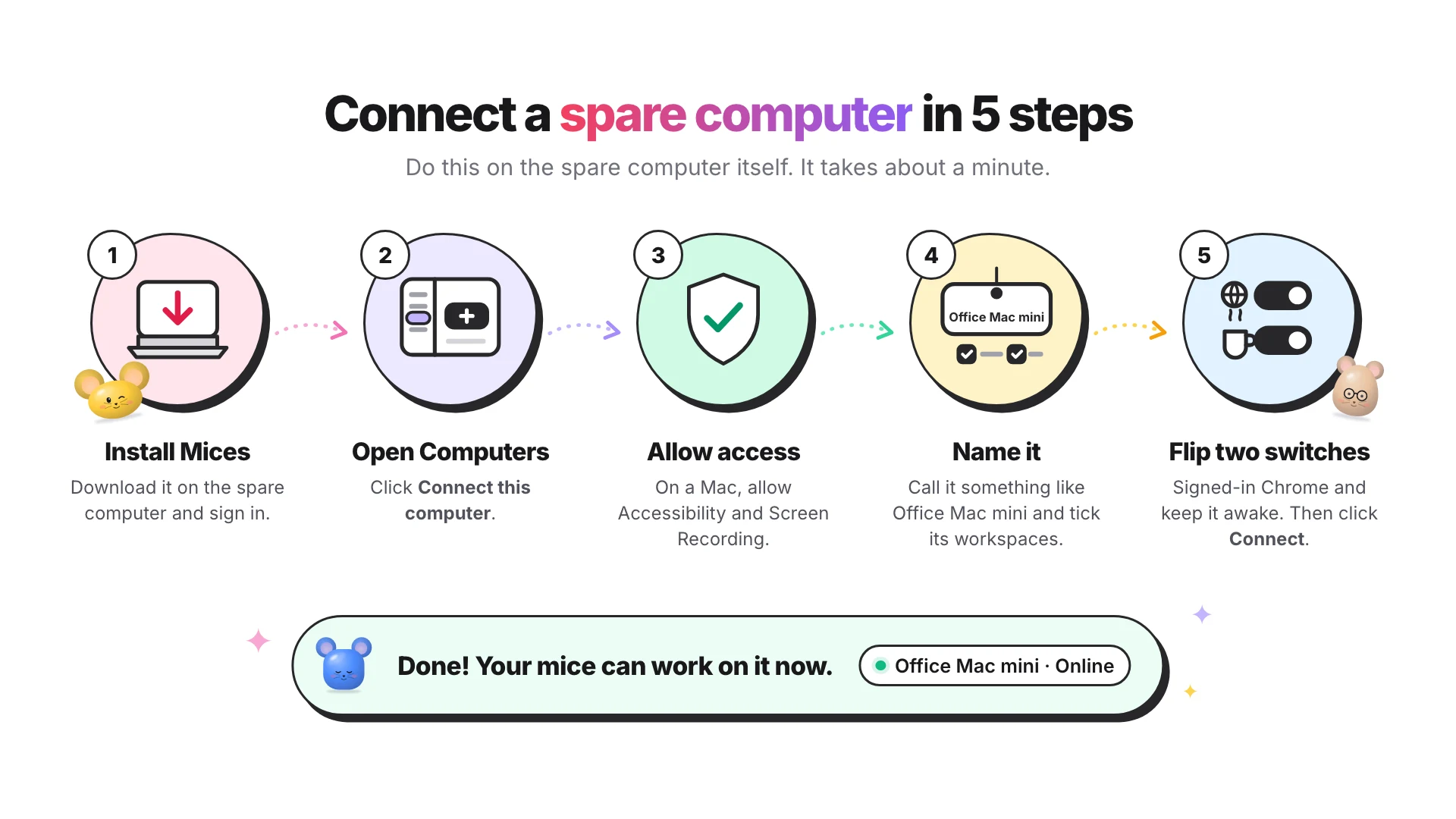
Spare computers are on the Business plan (1 computer) and the Agency plan (2), next to your cloud computers. You need to be an owner or admin of the workspace. Then do this on the spare computer itself:
- 1
Install Mices and sign in
Download Mices from mices.lol on the spare computer. There's a version for Mac, Windows and Linux. Sign in with the account you already use.
- 2
Open Computers
In the sidebar, open Computers. Under Your own computers, click Connect this computer.
- 3
Allow access on a Mac
macOS asks once for Accessibility, so mice can click and type in apps, and Screen Recording, so they can see what's on the screen. Mices only uses these while a mouse works on a task. If Screen Recording still looks off after you allow it, click Reopen Mices: macOS needs a restart before it counts. Windows and Linux skip this step.
- 4
Name it and pick its workspaces
Give it a name you'll know at a glance, like Office Mac mini, and tick the workspaces that can use it. A workspace can use your own computers next to its cloud computer.
- 5
Turn on Chrome and keep it awake
Switch on Let mice use your signed-in Chrome and Keep it awake and open Mices at login, then click Connect. Chrome may ask once to let Mices control it.
Send it your first task
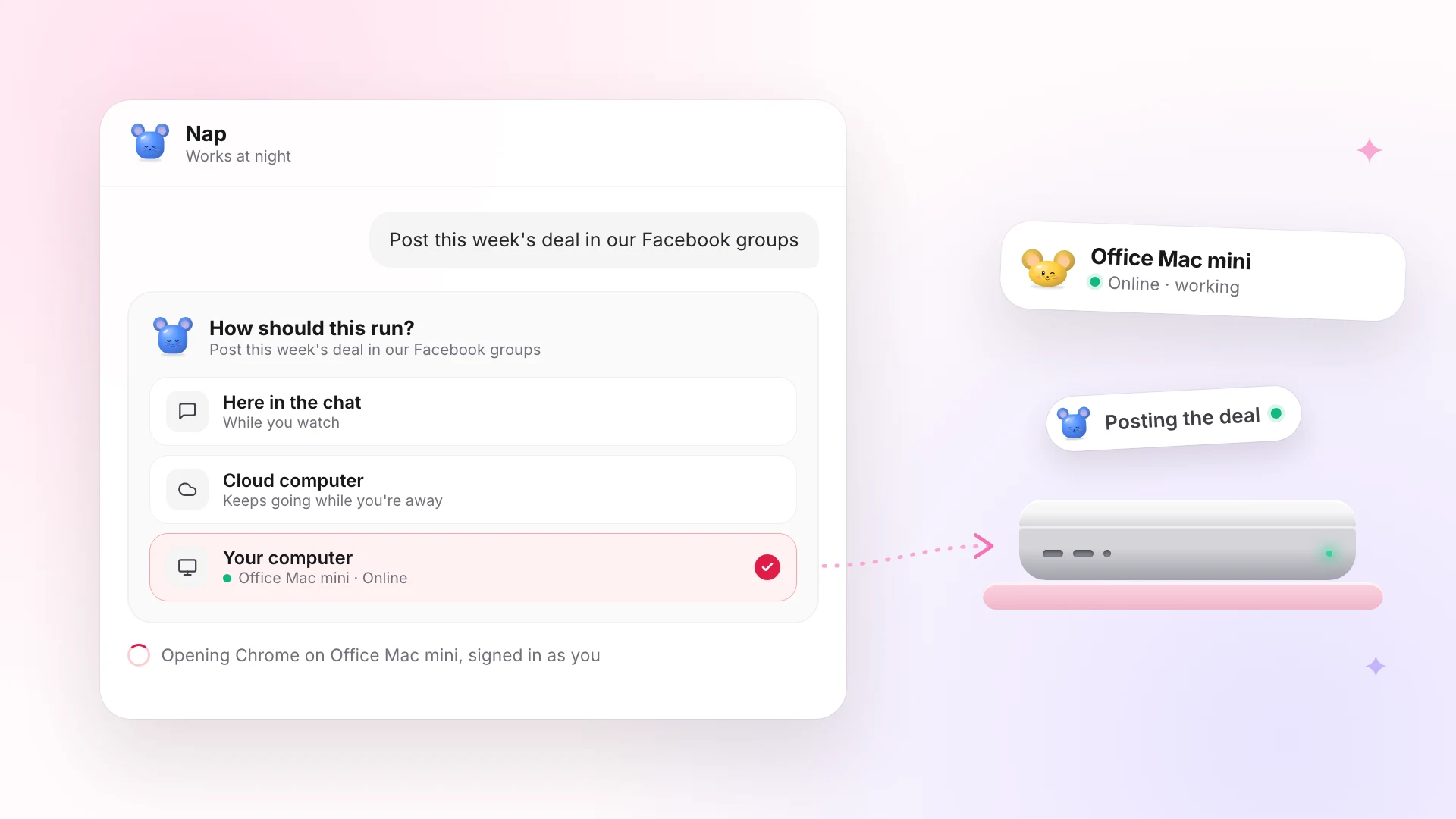
Go back to your usual computer and chat with a mouse like always. When a job needs a computer, the mouse asks How should this run? and you pick Your computer. You can also just name the computer in your message.
Steps show up in the chat while it works. If something needs you, like a sign-in, the mouse stops and asks, then carries on once you're done.
On the Office Mac mini, open my Chrome and go to the Facebook groups listed in the Groups tab of my Deals sheet. Write a short, friendly post about this week's deal for each group. Show me the first post before you share it, then do the rest.
Make it run on its own
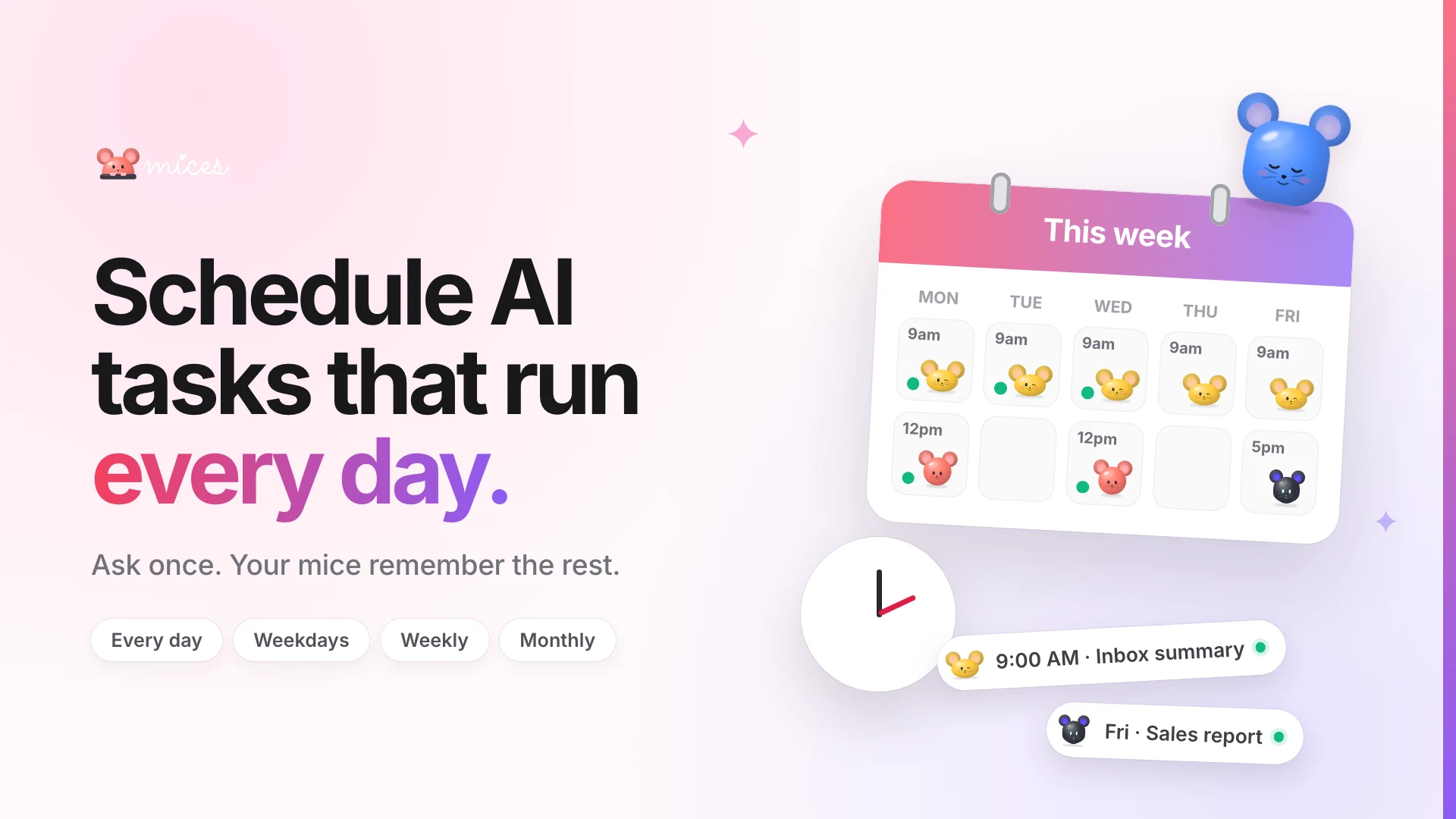
Add a schedule and the job repeats without you: every weekday at 9am, every Monday morning, or once next Friday. Schedules can run on your spare computer too.
If the computer is asleep or Mices is closed when the time comes, the task simply waits until it's back. Nothing gets lost.
Spare computer or cloud computer?
Mices has cloud computers too, and a workspace can use both side by side. Here's how they differ:
| Your spare computer | Cloud computer | |
|---|---|---|
| Logins | Your own Chrome, already signed in | Its own browser that stays signed in after you sign in once |
| Apps and files | Everything on that computer | The files you give the mouse |
| When it works | While it's on and Mices is open | Any time, even when your computers are off |
| Hours | A fifth of the task's time in cloud hours | Counts toward your computer hours |
| Best for | Sites that need your accounts, desktop apps | Jobs that should never wait |
A simple rule: if the job needs you (your accounts, your apps, your files), send it to your spare computer. If it just needs a browser and has to run no matter what, the cloud computer is the safer pick.
Is it safe to let AI use my computer?
It's a fair question, and you stay in charge the whole time:
- You choose where it works. A spare computer only takes tasks from the workspaces you tick.
- Access is only used during tasks. On a Mac, Accessibility and Screen Recording are only used while a mouse works on a task.
- You pick the Chrome profile. The first time, the mouse asks which profile to use.
- It asks before anything big, and it stops to ask you when it needs a sign-in.
- You can stop a task any time, and disconnect the computer from the Computers page whenever you like.
When you disconnect a computer, its workspaces stop using it and any task waiting for it stops. You can connect it again from Mices on that computer.
Questions people ask
Which Mices plans include spare computers?
Business connects 1 spare computer and Agency connects 2, next to their cloud computers. See the plans and prices for everything else that comes with them.
Does the spare computer need to stay on?
Yes. It needs to be awake with Mices open. Turn on Keep it awake and open Mices at login when you connect it. Tasks sent while it's asleep wait until it's back.
Can I use the computer while a mouse works on it?
Mice click and type on that computer's screen, so it works best when nobody else is using it at the same time. That's why a spare computer is such a good fit.
Do Windows and Linux computers work?
Yes. Mices runs on Mac, Windows and Linux, and any of them can become a computer for your mice. Only Macs ask for Accessibility and Screen Recording access.
How many hours does a task on my own computer use?
A fifth of its time in cloud hours. A task that runs for 30 minutes uses 6 minutes of cloud hours.