OpenClaw alternative: Mices vs OpenClaw on a Mac mini
OpenClaw or Mices for running AI agents on a Mac mini? Compare setup, teams, schedules, safety and cost, and see which one fits the way you work.

If you're looking for an OpenClaw alternative, you probably like the idea already: an AI agent on a Mac mini that works for you all day. OpenClaw and Mices both do that, in very different ways. OpenClaw is a free, open-source assistant you set up and run yourself. Mices is a desktop app where you build a small team of AI helpers (we call them mice) that work on a cloud computer or on your own spare one.
Here's an honest side by side, so you can pick the one that fits how you work. We make Mices, so we've stuck to what each product's own docs say, and listed our sources at the end.
What is OpenClaw?
OpenClaw is an open-source AI assistant that runs on your own computer. It's MIT licensed and looked after by the OpenClaw Foundation, an independent nonprofit. There's no paid tier and no hosted service.
The heart of it is the Gateway, a control center that runs on your machine. You talk to your assistant through chat apps you already use, like WhatsApp, Telegram, Slack, Discord and iMessage, or through its web dashboard, the Control UI.
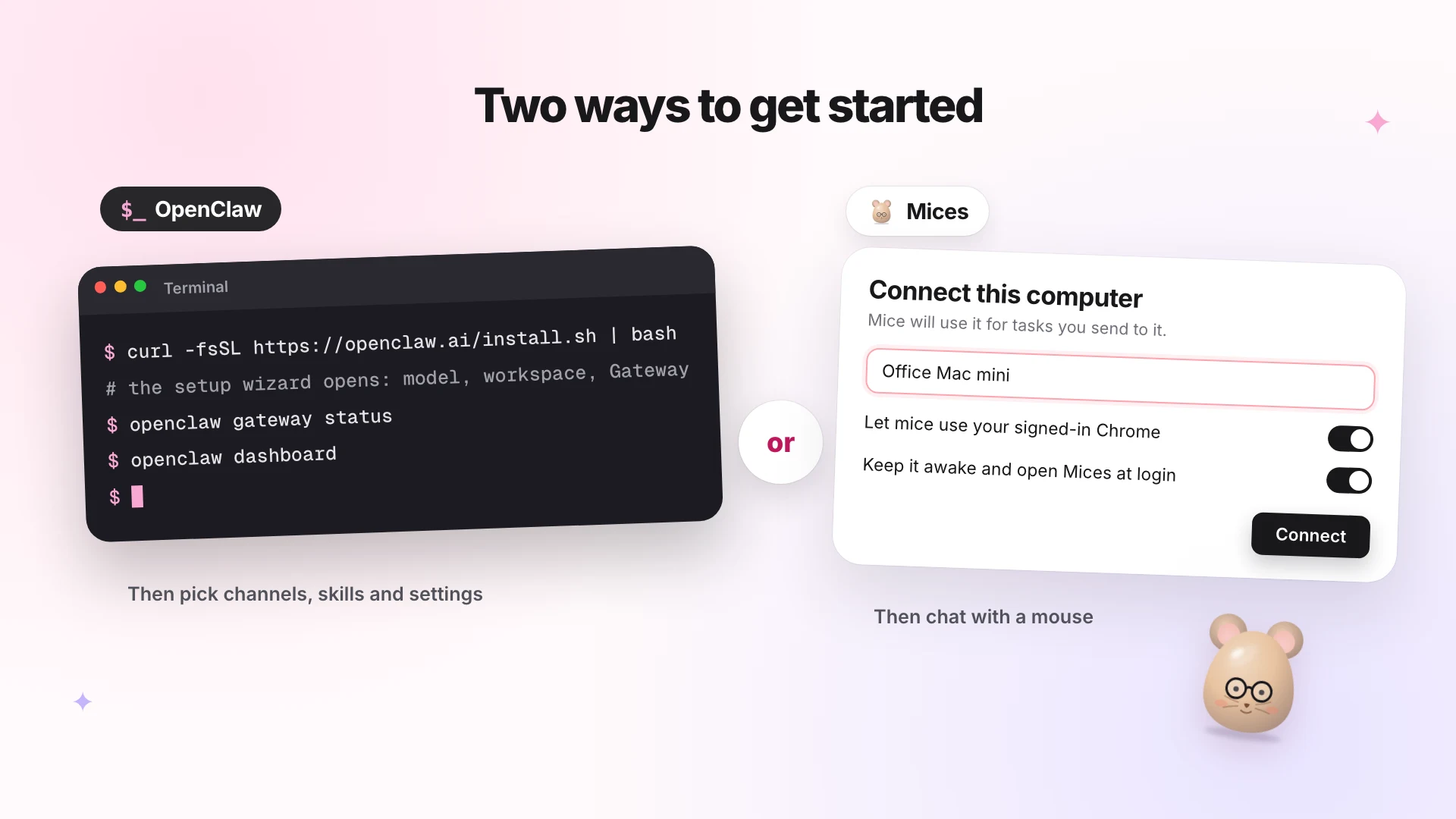
You install it with one command in the terminal. An onboarding wizard then checks your AI model, creates a workspace and sets up the Gateway. From there you add:
- Models: hosted ones like Claude and OpenAI's models, or local models.
- Skills and plugins, many of them from ClawHub, its public registry.
- Automations, its built-in scheduler for jobs that run at set times.
- Teammates, by sharing one Gateway with a team. The docs call this a multiplayer claw.
Why do people run OpenClaw on a Mac mini?
Because an agent is most useful when it's always on. OpenClaw's own FAQ calls the Mac mini a popular always-on host. It's small and quiet, and it has fewer sleep and reboot interruptions than the laptop you carry around.
You don't need one, though. The same FAQ says a small VPS, a home server or a Raspberry Pi class box works too. A Mac matters mostly for Mac-only tools like iMessage. The docs also recommend a dedicated machine for reliability and isolation, which is a big part of why so many people set one aside just for their agent.
What is Mices?
Mices is a desktop app for Mac, Windows and Linux. You make mice, each with its own role, instructions, files and tools, and you hand them work in a chat. A mouse can research, use a real browser, work in apps like Gmail, Slack, Notion and HubSpot (or any tool with an MCP server), and hand back finished files.
Every paid plan comes with a cloud computer with a browser that stays signed in, so tasks keep going while your own computers are off. On the Business and Agency plans you can also connect a spare Mac mini or an old laptop, and mice work there in its apps and the Chrome you're already signed in to. Here's how to run AI agents on a Mac mini or an old laptop with Mices.
OpenClaw vs Mices: how do they compare?
| Compared | MicesFree plan, paid from $19 | OpenClawFree, open source |
|---|---|---|
| What it is | Desktop app with a free plan and paid plans | Open-source assistant, MIT license |
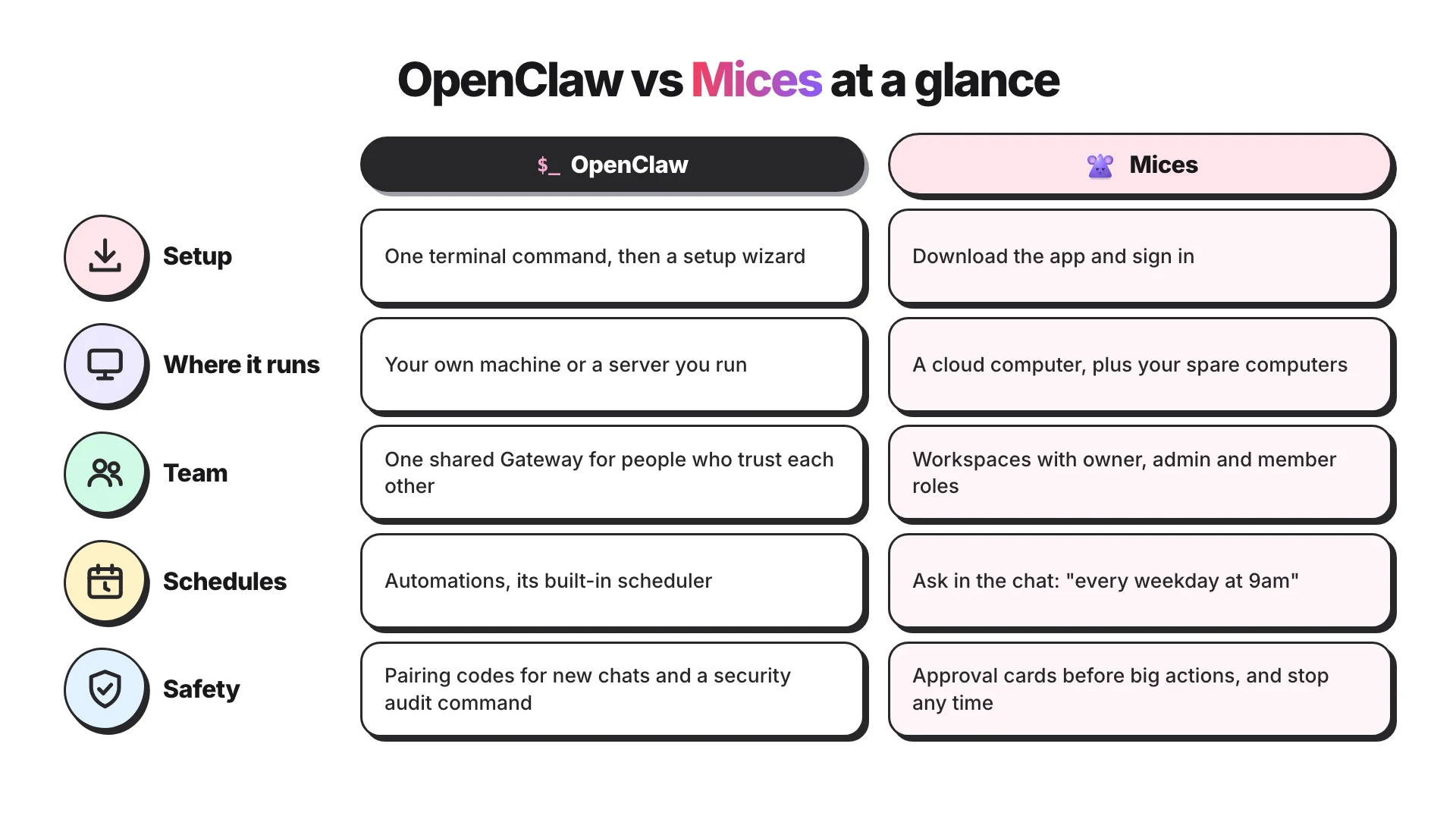
| Setup | Download the app and sign in | One terminal command, then an onboarding wizard |
| Where you talk to it | The Mices app on Mac, Windows and Linux | Chat apps like WhatsApp, Telegram, Slack and iMessage, plus a web dashboard |
| Where it runs | A cloud computer on paid plans, plus your spare computers on Business and Agency | Your own machine: a Mac mini, laptop, home server or VPS |
| Teams | Workspaces with owner, admin and member roles | One shared Gateway for a team whose members trust each other |
| Schedules | Ask in the chat: once, or every day, week or month | Automations, its built-in scheduler |
| Add-ons | Connected apps, any MCP server, and ready-made mice from the Marketplace | Skills and plugins, many from ClawHub |
| AI models | Claude, ChatGPT, Gemini, DeepSeek, Grok, Kimi, MiniMax, OpenRouter or your own compatible AI | Hosted models like Claude and OpenAI's, or local models |
| Your data | API keys are encrypted and saved for the workspace on Mices' servers | State, memory and credentials stay on your hardware |
| Cost | A free plan, then paid plans with more hours, seats and computers | Free software; you pay for your AI model and the machine |
When is OpenClaw the better pick?
OpenClaw is a great fit if most of these sound like you:
- You want open source. You can read the code, change it and host it however you like.
- You want everything on your own hardware. State, memory and credentials stay on your machine.
- You're happy in the terminal. Setup, updates and fine tuning happen there and in config files.
- You want to text your agent. WhatsApp, Telegram, iMessage and many more chat apps work out of the box.
- You don't want a subscription. You pay for the AI model and the computer, and that's it.
When is Mices the better pick?
Mices is a better fit if these sound more like you:
- You'd rather skip the terminal. Download the app, sign in and start chatting with a mouse.
- You work with a team or with clients. Each workspace has its own mice, apps and keys. Invite teammates as admins or members from Workspace settings, or see how agencies run one workspace per client.
- You want work to keep going while you're away. The cloud computer runs tasks even when your own computers are off. A spare computer of yours uses only a fifth of a task's time in cloud hours.
- You want schedules and approvals in the chat. Say "every weekday at 9am" and the mouse sets it up. Before anything big, like deleting data or paying, it shows an approval card and waits for you.
- You want ready-made helpers. Add a mouse from the Marketplace in one click, or sell your own and keep 70% of every sale.
- You like to switch AI models. Use Claude, ChatGPT, Gemini, DeepSeek and more, and change any time.
Not sure where to start? Mices has mice for jobs like finding LinkedIn leads with AI and automating your LinkedIn posts.
Is it safe to run an AI agent on your Mac mini?
Any agent that can use your accounts deserves care, and OpenClaw's docs are open about it. A few things worth knowing before you start:
- Messages are treated as untrusted. Most of its chat apps answer an unknown sender with a pairing code instead of passing the message on.
- Tools run on the host by default. For your main session, tools run right on the machine unless you set up sandboxing. That's one more reason people give the agent its own Mac mini.
- One Gateway is one trust boundary. The docs say it's built for one person, or a team whose members trust each other.
- There's a checkup command.
openclaw security auditlooks for common problems in your setup.
Skills need the most care. In February 2026, Koi Security audited 2,857 skills on ClawHub and found 341 malicious ones, most of them trying to install a macOS data stealer, as reported by The Hacker News. ClawHub now shows a security audit for each skill and plugin, and its docs say audits are strong signals, not a guarantee. Install only skills you understand and trust.
In Mices, the guard rails are built into the app:
- On a spare Mac, Accessibility and Screen Recording are only used while a mouse works on a task.
- The first time a mouse uses Chrome on that computer, it asks which profile to use.
- You can watch a mouse work live and stop it any time.
How do you try Mices on a Mac mini?
If you already have a Mac mini on a shelf, setting it up for Mices takes about a minute:
- 1
Install Mices on the Mac mini
Download Mices from mices.lol and sign in. You don't need the terminal.
- 2
Open Computers
In the sidebar, open Computers and click Connect this computer.
- 3
Allow access
macOS asks once for Accessibility and Screen Recording, so mice can click, type and see the screen.
- 4
Name it and pick workspaces
Call it something like Office Mac mini and tick the workspaces that can use it.
- 5
Turn on Chrome and keep it awake
Switch on Let mice use your signed-in Chrome and Keep it awake and open Mices at login, then click Connect.
Every weekday at 9am, on the Office Mac mini, open my Chrome and check the newest posts in the three Facebook groups listed in my Groups sheet. Add any question about our product to the sheet with a link to the post. Don't reply to anyone; I'll do that myself.
Questions people ask
Is OpenClaw free?
Yes. OpenClaw is free, open-source software under the MIT license, with no paid tier or hosted service. You pay for the AI model you connect and for the computer it runs on.
Do I need a Mac mini for OpenClaw or Mices?
No. OpenClaw's FAQ says a small VPS, a home server or a Raspberry Pi class box works too; a Mac matters for Mac-only tools like iMessage. Mices runs tasks on a cloud computer on every paid plan, and a spare Mac, Windows or Linux computer is an extra on the Business and Agency plans.
Can a team share one OpenClaw?
Yes. One Gateway can be shared as a multiplayer claw, but the docs say it's meant for people who trust each other. For people who don't, they recommend separate Gateways. In Mices, each workspace has its own mice, apps and keys, and you invite people as admins or members.
Which AI models does Mices work with?
Claude, ChatGPT, Gemini, DeepSeek, Grok, Kimi, MiniMax, OpenRouter, or your own compatible AI. You can switch any time.
Can I message Mices from WhatsApp or Telegram?
Not today. You chat with your mice in the Mices app on Mac, Windows or Linux. If you want to talk to your agent from chat apps, that's one of OpenClaw's strengths.
Sources
- OpenClaw on GitHub: what it is, license, install and security basics
- Why OpenClaw: the OpenClaw Foundation
- FAQ: providers, hardware and hosting: Mac mini and other hosts
- Security: safe defaults and the security audit
- Automations and Multiplayer: scheduling and teams
- ClawHub security audits
- The Hacker News: 341 malicious ClawHub skills (February 2026)
OpenClaw changes quickly. We checked these pages in November 2026.