AI agents for agencies: one workspace per client
Run every client in its own Mices workspace, with its own logins, apps, browser profiles and mice, so client work never mixes and your team moves faster.

AI agents for agencies work best when every client has a space of its own. In Mices, that space is a workspace. Each one keeps its own AI helpers (we call them mice), logins, connected apps, browser profiles, files and schedules. Your team switches between clients from the workspace switcher, and one client's work never lands in another's.
This guide shows how a marketing, lead generation, social media or recruiting agency can set it up: what each workspace keeps to itself, who on your team can do what, how schedules share computers, and what the Business and Agency plans include.
Why should an agency give every client its own workspace?
Agency work is a lot of the same jobs for different people. Post for this brand, find leads for that one, send a weekly report to a third. The jobs repeat, which makes them perfect for AI agents. What goes wrong is the mix-ups: a post from the wrong page, leads in the wrong sheet, a reply in the wrong brand voice.
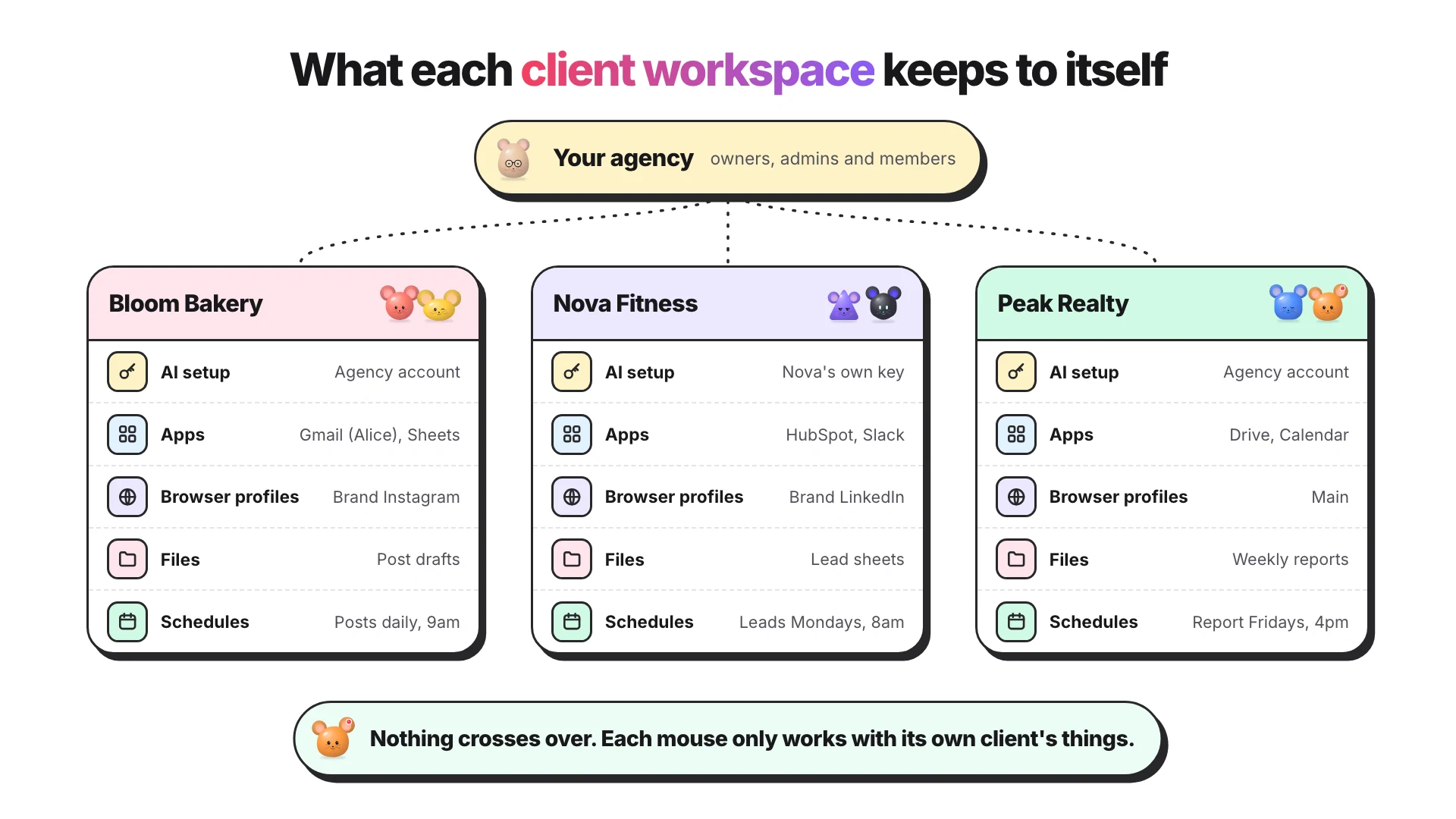
A workspace draws a line around each client. Workspaces keep mice, chats, files and members apart, so a mouse working for one client only has that client's things to hand. The logins and apps for your other clients live in other workspaces, out of its reach.
It also keeps your head clear. Open the Bloom Bakery workspace and you see Bloom's mice, Bloom's chats and Bloom's files. Nothing else.
What does each client workspace keep to itself?
Here's everything that stays inside one client's workspace:
- Mice and chats. Each workspace has its own mice, with their own roles and instructions, and its own chat history.
- Files. What the mice make for the client is saved in that workspace's files, and each workspace gets its own folder on the computer.
- Workspace instructions. Write the client's brand voice and rules once. Every mouse in the workspace follows them, in chats, cloud tasks and schedules.
- The AI setup. Which AI and model the mice use, the subscription or API key they use it with, and any backup accounts.
- Connected apps. Gmail, Slack, HubSpot, Google Drive and the rest. Each account is named after the person who connected it, so when a workspace has two Gmail accounts, the mouse picks the right one by name.
- Browser profiles. Each profile keeps its own sign-ins, so you can stay signed in to several accounts of the same site, like a brand page and the founder's profile. Mice start on the Main profile and switch when a task names another one.
- Schedules. The client's repeating tasks live with the client.
How do you set up a client workspace?
It takes a few minutes per client. Do the settings steps as an owner or admin:
- 1
Create the workspace
Open the workspace switcher and click Create workspace. Name it after the client, like Bloom Bakery.
- 2
Write the workspace instructions
In Settings, open Models & behavior and fill in Workspace instructions: the client's brand voice, words to avoid, who their customers are. Every mouse in this workspace follows them.
- 3
Set up the AI
Under Providers, choose the AI and how the mice reach it: a subscription or an API key. If the client pays for their own AI, add their key here.
- 4
Connect the client's apps
On Apps & integrations, connect what the work needs, like Gmail, Google Sheets or HubSpot. Everything connected there is shared with every mouse in this workspace.
- 5
Add browser profiles
On the computer card next to the chat, open the browser profile menu and pick Manage profiles. Type a name like Brand LinkedIn and click Add profile. Sign in to the client's sites once in that profile and it stays signed in.
- 6
Add mice and schedules
Make a mouse for each job, like a social poster and a lead finder, or add one from the Marketplace. Then put the repeating work on a schedule.
Who on your team can do what?
Invite people from Workspace settings, under Members: type their email, pick Member or Admin, and click Invite. They get an email with the steps to join, and the invitation expires in seven days.
| Owner | Admin | Member | |
|---|---|---|---|
| Use the workspace's mice, apps, logins and keys | Yes | Yes | Yes |
| Connect apps | Yes | Yes | Yes |
| Invite people and change roles | Yes | Yes | No |
| Change the AI setup, logins, keys and backup accounts | Yes | Yes | No |
| Add custom MCP servers | Yes | Yes | No |
| Remove a connected app or key | Yes | Yes | Only ones they added |
Everyone in the workspace can see what's connected and who added it, but never a password or key.
A seat is a person, not a workspace. A teammate who works in five client workspaces takes one seat.
You can invite someone from the client too. As a member, they see their own workspace and can connect their own accounts, so nobody has to share a password with you. If they'd rather not see every command, turn off Show technical steps under Chat activity in Workspace settings. Everyone in that workspace then sees one short line that updates as the mouse works.
How do schedules work across many clients?
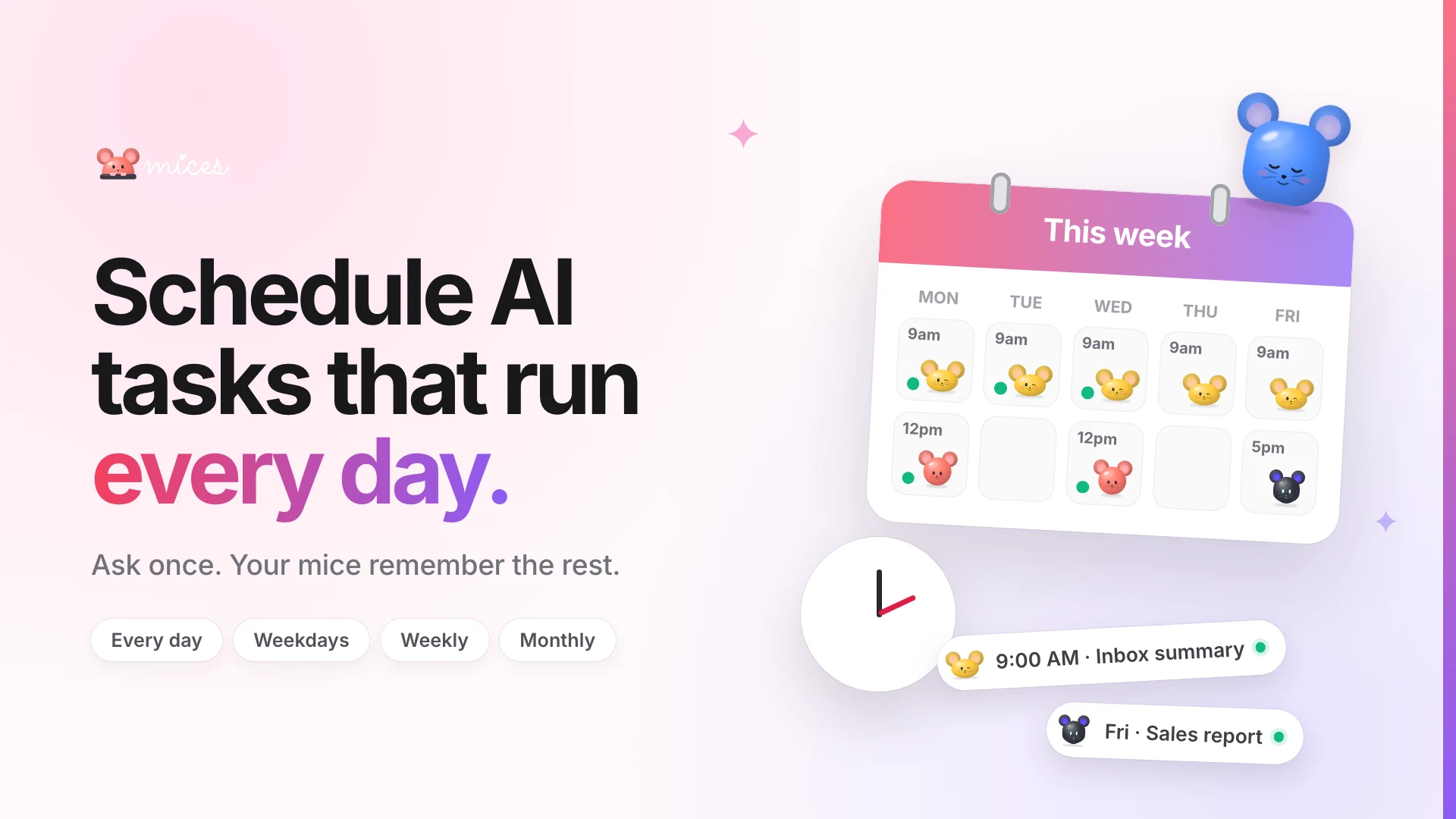
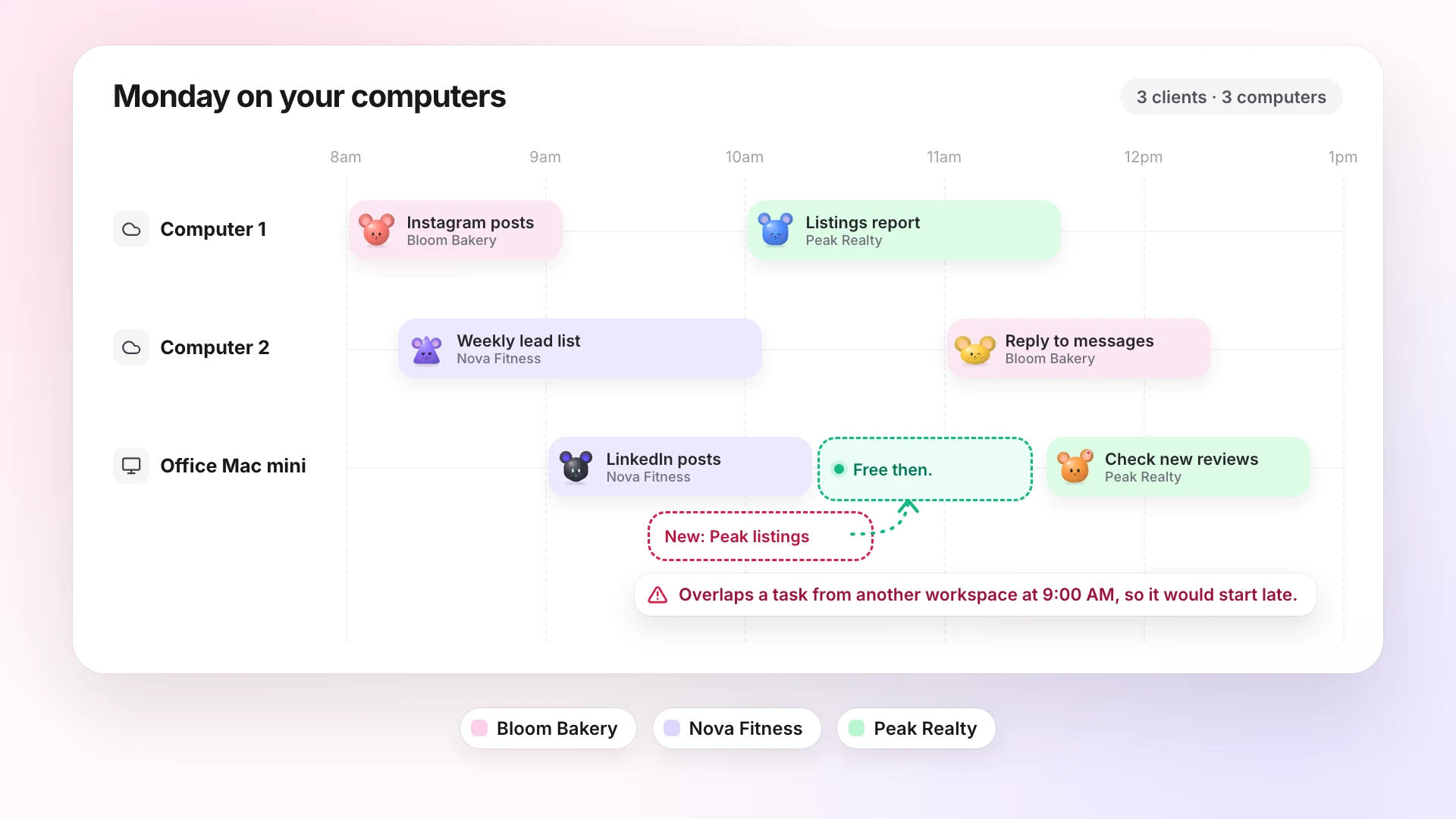
Each client's schedules live in its workspace and run on a computer. A cloud computer runs one task at a time, and the workspaces on the same computer share its desktop, while each keeps its own folder and browser profiles.
When you schedule a task, Mices shows that computer's day. Tasks from other workspaces show in grey, and if the new time overlaps one, you'll see a note that it would start late. Pick a free slot and your clients' work runs one job after another.
A few things help as your client list grows:
- Agency has 2 cloud computers running at once. In Workspace settings, under Computer, pick Computer 1 or Computer 2 for each workspace to spread your clients out.
- Spare computers add room. Business can connect 1 and Agency 2, like a Mac mini or an old laptop. Tasks there use only a fifth of their time in cloud hours. Here's how to run AI agents on a Mac mini.
- Priority start. On Business and Agency, your tasks start ahead of other plans' tasks when computers are busy.
- Long jobs fit. A task can run for up to 2 hours.
- Backup AI accounts. When one AI account hits its limit, a task can carry on with the next one: 1 backup on Business, 3 on Agency.
What does a Mices plan for agencies include?
Business suits a small agency with a handful of clients. Agency is built for running many clients in parallel.
| Business | Agency | |
|---|---|---|
| Client workspaces | 10 | 50 |
| Seats | 5 | 20 |
| Mice | Unlimited | Unlimited |
| Cloud computers | 1 | 2, running at once |
| Spare computers you can connect | 1 | 2 |
| Browser profiles per workspace | 2 | 5 |
| Longest task | 2 hours | 2 hours |
| Priority start | Yes | Yes |
| Backup AI accounts | 1 | 3 |
| Hours on the monthly plan | 250 cloud, 50 computer | 600 cloud, 125 computer |
| Storage on the monthly plan | 150 GB | 500 GB |
Yearly and lifetime plans come with their own hours and storage, so check plans and prices for the one you want. On every plan you use your own AI account. If you need more time, extra hours never expire, and Agency pays the least for them: $0.24 a cloud hour and $0.45 a computer hour.
What can an agency hand to mice first?
Start with the job you repeat most for the most clients. Some good first picks:
- Lead generation agencies: a weekly list of B2B leads backed by real evidence for each client, in the client's own sheet.
- Social media agencies: daily posts in each brand's voice, like automated LinkedIn posts or carousels. Here's how to automate social media with AI.
- Influencer and affiliate agencies: a shortlist of Instagram creators who fit each brand.
- Recruiting agencies: research candidates for each open role and keep a shortlist sheet per client.
Here's a weekly job you could give a lead finder mouse inside one client's workspace:
Every Monday at 8am, find 25 new companies that match the ideal customer in the Client brief file. Add each one to the Leads tab of the client's Google Sheet with the website, a decision maker and one line on why they fit. Use the Brand LinkedIn browser profile. Then send me a short summary here.
Questions people ask
How many clients can I run in Mices?
Give each client a workspace: up to 10 on Business and 50 on Agency. Each one keeps its own mice, apps, logins, files and schedules.
Does a teammate need a seat for every client?
No. A seat is a person. Someone who works in several of your organization's workspaces takes one seat. Business has 5 seats and Agency has 20.
Can my client log in and see the work?
Yes. Invite them to their workspace as a member. They see that workspace, not your other clients, and they can connect their own apps. They take a seat like anyone else on the team.
Can mice use several accounts on the same site?
Yes. Each browser profile keeps its own sign-ins, so a workspace can stay signed in to several accounts of one site. Business has 2 profiles per workspace and Agency has 5, and a task can name the profile to use.
Who pays for the AI?
You use your own AI account, and each workspace has its own AI setup. Your agency can use one account everywhere, or a client can use their own key in their workspace. Your Mices plan pays for the computers, the time they run, storage and your team.